适用于 Jetson Orin Nano Super Developer Kit 的 GMSL Adapter Kit#
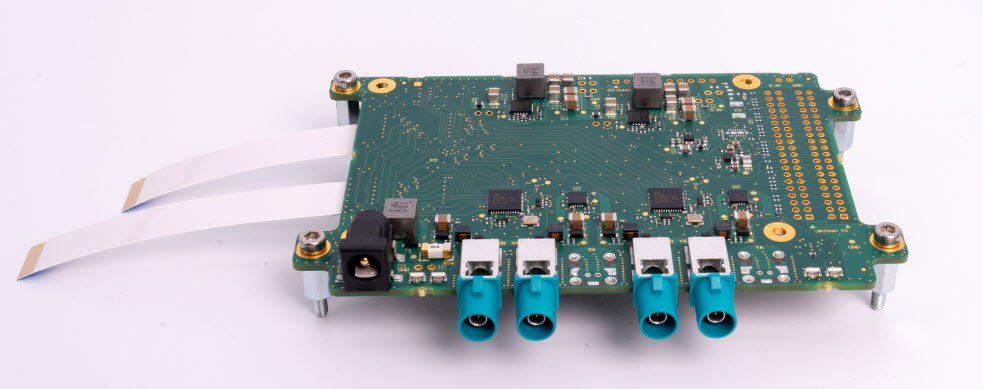
本主题提供有关 Basler GMSL Adapter Board 特性、如何将其连接到 NVIDIA Jetson Orin Nano Super Developer Kit,以及如何将该转接板与 Basler GMSL 相机和 NVIDIA Jetson Orin Nano Super Developer Kit 结合使用的信息。
信息
Basler GMSL Adapter Board 适用于以下相机型号:ace 2 GMSL 相机
主要功能#
- 适用于 NVIDIA 的 Jetson Orin Nano Super Developer Kit
- 最多可连接四台 Basler GMSL 相机(2 个双解串器端口,允许将两台相机连接到一个端口)
- 可切换的 PoC 相机供电
- 2 根柔性扁平电缆 (FFC)(22 引脚,0.5 毫米间距,76 毫米),用于将 NVIDIA Developer Kit 连接到 Basler GMSL Adapter Board
- Y 型分路电源线,用于从 NVIDIA Developer Kit 分出电源。
这样,整个系统设置只需一个电源单元即可运行。
通用规格#
| 订单号 | 109905 |
| 支持的嵌入式板卡/主系统 | NVIDIA Jetson Orin Nano Super Development Kit |
| 支持的相机 | Basler ace 2 GMSL 相机 |
| 符合标准 | CE(包含 RoHS)、UKCA、FCC、KC 有关更多信息,请参阅 Basler 网站上的 Compliance 部分。 |
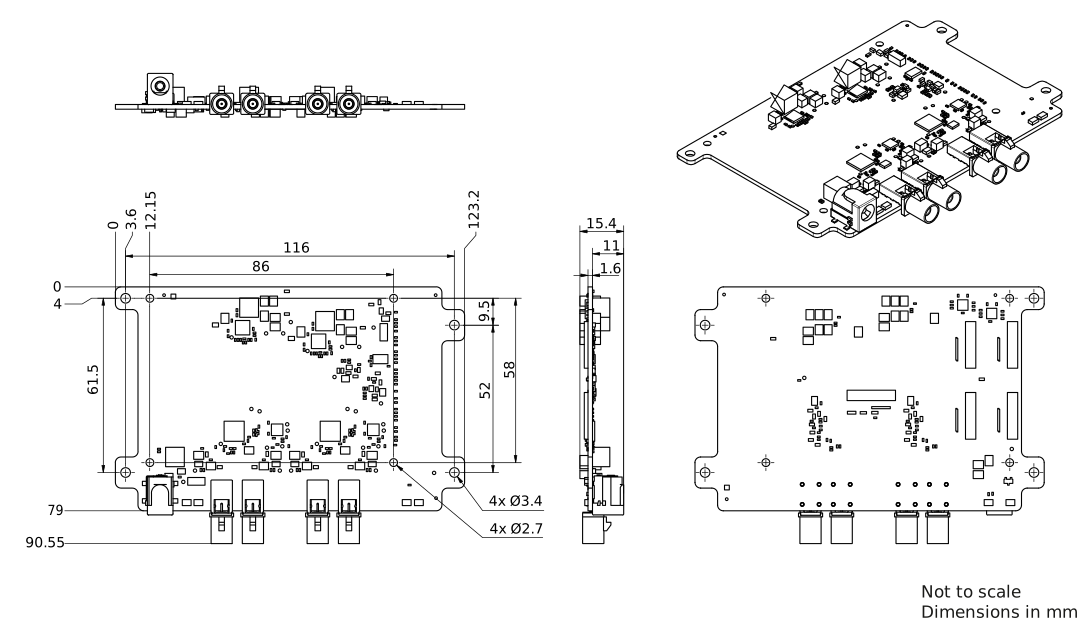
GMSL Adapter Board 尺寸#
转接板上的组件#
环境规格#
| 操作温度 | -10–60 °C (14–140 °F) 如果将板卡安装在外壳中,请确保环境温度在以下限制范围内:-40–70 °C (-40–158 °F) NVIDIA Jetson Orin Nano Super Developer Kit 的额定温度为 0–35 °C (32–95 °F)。 |
| 存放温度 | -40–100 °C (-40–212 °F) |
| 湿度 | 无冷凝 |
电气规格#
| Basler GMSL Adapter Board | |
|---|---|
| 供电电压(通过 DC 插孔) | 19 VDC(典型值)(GMSL Adapter Board 和 NVIDIA Jetson Orin Nano Super Developer Kit) |
| 电源要求 | 3.3 W + 相机供电(这取决于 ace 2 GMSL 相机型号。) |
| 电源电压(适用于 12 VDC PoC 相机) | 12 VDC |
| 每台相机的 PoC 输出电流 | 0.6 A |
信息
- 可以使用 GMSL Adapter Kit 中包含的 Y 型分线电源电缆为 NVIDIA Jetson Orin Nano Super Developer Kit 供电。
- 连接多个相机时,请注意 DC 电源的最大功率输出。
状态 LED 指示灯#
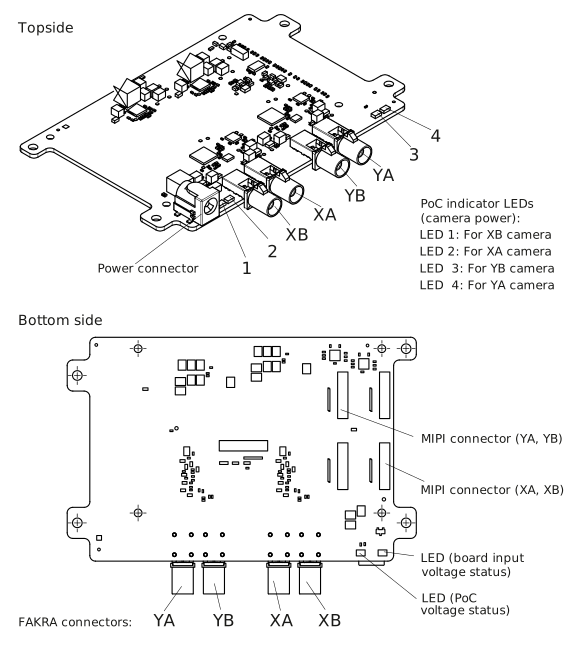
GMSL Adapter Board 上有以下 LED
(“连接器到 LED”的分配,参见上图):
- 4 个 PoC LED(PoC = Power over CoaX),用于指示相机的电源状态
- 1 个 PoC LED(PoC 板电压),用于指示 GMSL Adapter Board 的PoC 电压状态
- 1 个 LED,用于指示 GMSL Adapter Board 的输入电压状态
有关不同 LED 状态的说明,请参见 LED 状态表。
LED 状态指示灯#
| LED 状态指示灯 | 含义 |
|---|---|
| 4 个 PoC 指示灯 LED(相机电源) | 绿色:已启用至相机的 12 V PoC LED 未亮起:已禁用 12 V PoC |
| 1 个 PoC LED(PoC 板电压状态) | 绿色:GMSL Adapter Board 上存在 12V PoC 电压源。 LED 未亮起:不存在 12V PoC 电压源 |
| 1 个板载输入电压 LED | 橙色/黄色:GMSL Adapter Board 的输入电压正常且所有稳压器均在工作(正常状态)。 红色:存在输入电压,但 GMSL Adapter Board 稳压器未正常工作。 LED 未亮起:无输入电压或 GMSL Adapter Board 稳压器未工作。 |
安装#
准备工作#
在开始安装之前,请确保备齐以下物品:
- Basler GMSL Adapter Kit,包括:
- Basler GMSL Adapter Board(GMSL2 四通道解串器板)
- 2 根柔性扁平电缆(FFC 电缆):22 引脚插座连接器,间距为 0.5 毫米/一根电缆对应两个 GMSL 相机(即最多可连接四个相机)
- 1 根带 Y 型分线的 DC 电源线,5.5 x 2.5 毫米
- 用于安装板的螺丝
- NVIDIA Jetson Orin Nano Super Development Kit(含电源)
- Camera Enablement Package(需安装在 NVIDIA Jetson Orin Nano Super Developer Kit 上)。Camera Enablement Package 支持搭载 NVIDIA Orin SoC 的 NVIDIA JetPack 6。
有关详细信息,请参阅 NVIDIA 文档。 - Basler ace 2 GMSL 相机
- GMSL Coaxial Cables with FAKRA Connector. You need one cable per camera.<
For ordering a suitable cable assembly, see the website product page. - 能够访问 Ubuntu APT 镜像源的互联网连接
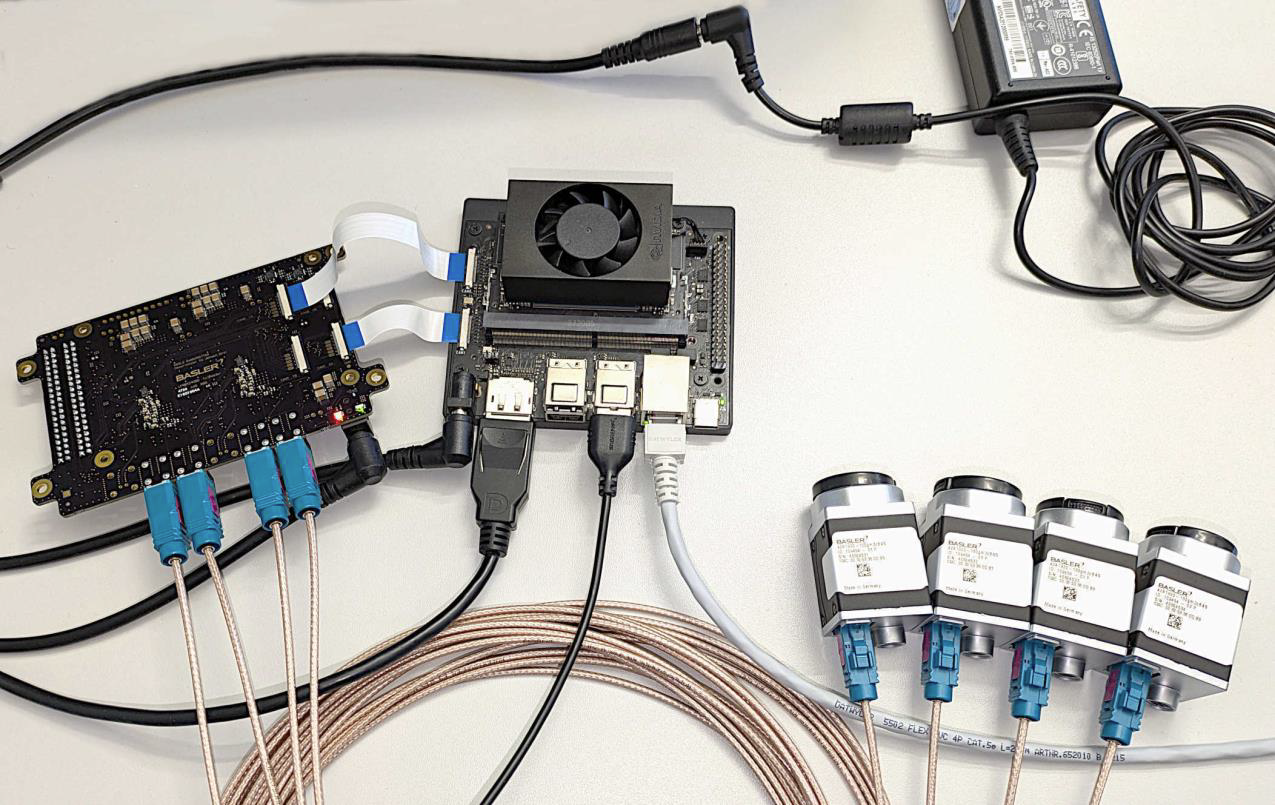
下图显示了一个设置示例。请注意,组件及其数量(例如相机数量)可能会有所不同。
第一步#
- 确保您的主机系统(即 NVIDIA Jetson Orin Nano Super Development Kit)已准备就绪(即能够正常运行)。
有关详细信息,请参阅 NVIDIA 文档。 - 在您的主机系统上安装 pylon for Linux。
- 为您的主机系统安装 Camera Enablement Package。
另请参阅Installing and Setting Up the Software中的更多详细信息。
安装相机、GMSL Adapter Board 和光源#
要连接相机:
在以下设置中,相机的电源由 GMSL Adapter Board 上的电源连接器提供。
- 确保所有组件的电源均已关闭。
- 从镜头接口上取下保护盖。
- 将镜头安装到相机上。注意镜头插入的深度不要超过“允许的最大镜头伸入深度”主题中指定的深度。
- 如果您只想使用 FAKRA 连接器,请跳过此步骤并直接进行步骤 4。
如果要使用相机的任何 I/O 线路(光耦隔离线路、GPIO 线路),请执行以下步骤:- 对于每台相机,将 I/O 电缆的 6 针连接器插入相机的 I/O 连接器。
- 对于每台相机,将 I/O 电缆的另一端连接到发送和接收 I/O 信号的设备。
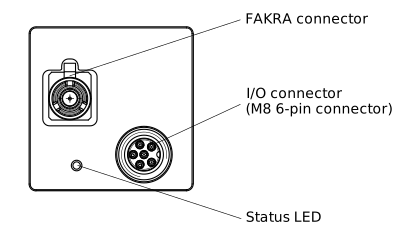
- 连接 FAKRA 同轴电缆:
- 对于每台相机,将同轴电缆的 FAKRA 连接器插入相机的 FAKRA 连接器。有关 FAKRA 连接器与 GMSL Adapter Board 上连接器的分配信息,请参见上面的图纸。
- 对于每台相机,将 FAKRA 同轴电缆的另一端插入 GMSL Adapter Board 的 FAKRA 端口。
- 将 FFC 电缆连接到 adapter board 以及 NVIDIA Jetson Orin Nano Developer Kit 上的 MIPI 连接器。有关 adapter board 与 NVIDIA Jetson Orin Nano Developer Kit 之间分配的信息,请参见上方Components on Adapter Board下的图纸以及下表。
- 连接 Y 型分路 DC 电源线:
- 将 Y 形分路 DC 电源电缆的公插头连接到 GMSL Adapter Board 的电源连接器以及 NVIDIA Jetson Orin Nano Developer Kit 的电源连接器。
- 将 Y 形分路 DC 电源电缆的输入端连接到电源。
| GMSL 适配板上的 相机 FAKRA 连接器 | Jetson Orin Nano 模块上的 MIPI 连接器 |
|---|---|
| YA、YB | CAM0 |
| XA、XB | CAM1 |
信息
在“CAM0”连接器上,NVIDIA Jetson Orin Nano 模块仅支持 2 条 MIPI CSI 通道。这是 NVIDIA Jetson Orin Nano Super 开发套件的限制,而非 GMSL 适配板的限制。这会降低 GMSL 连接器 YA/YB 上的可用带宽(可用带宽约为 250 MB/s)。“CAM1”支持四条 MIPI CSI 通道(即可用带宽为 500 MB/s)。
要安装光源
有关光源安装步骤(光源和 Light Control)的信息,请参阅安装 Basler 光源主题。
安装与设置软件#
在接下来的步骤中,您需要联网。
- 确保您的组件已通电。
- 若要使用相机,请安装相机启用软件包。支持配备 NVIDIA Orin Nano SoM 的 NVIDIA JetPack 6。
对于其他操作系统(例如 Yocto)或其他 SoC(例如 NXP i.MX8、Raspberry Pi5 CM5),请联系 Basler 支持部门以获取帮助。 -
在安装过程中,可能需要安装其他特定于发行版的软件包。这需要能够访问 Ubuntu APT 镜像的互联网连接。
以下代码片段展示了调用方式:# -
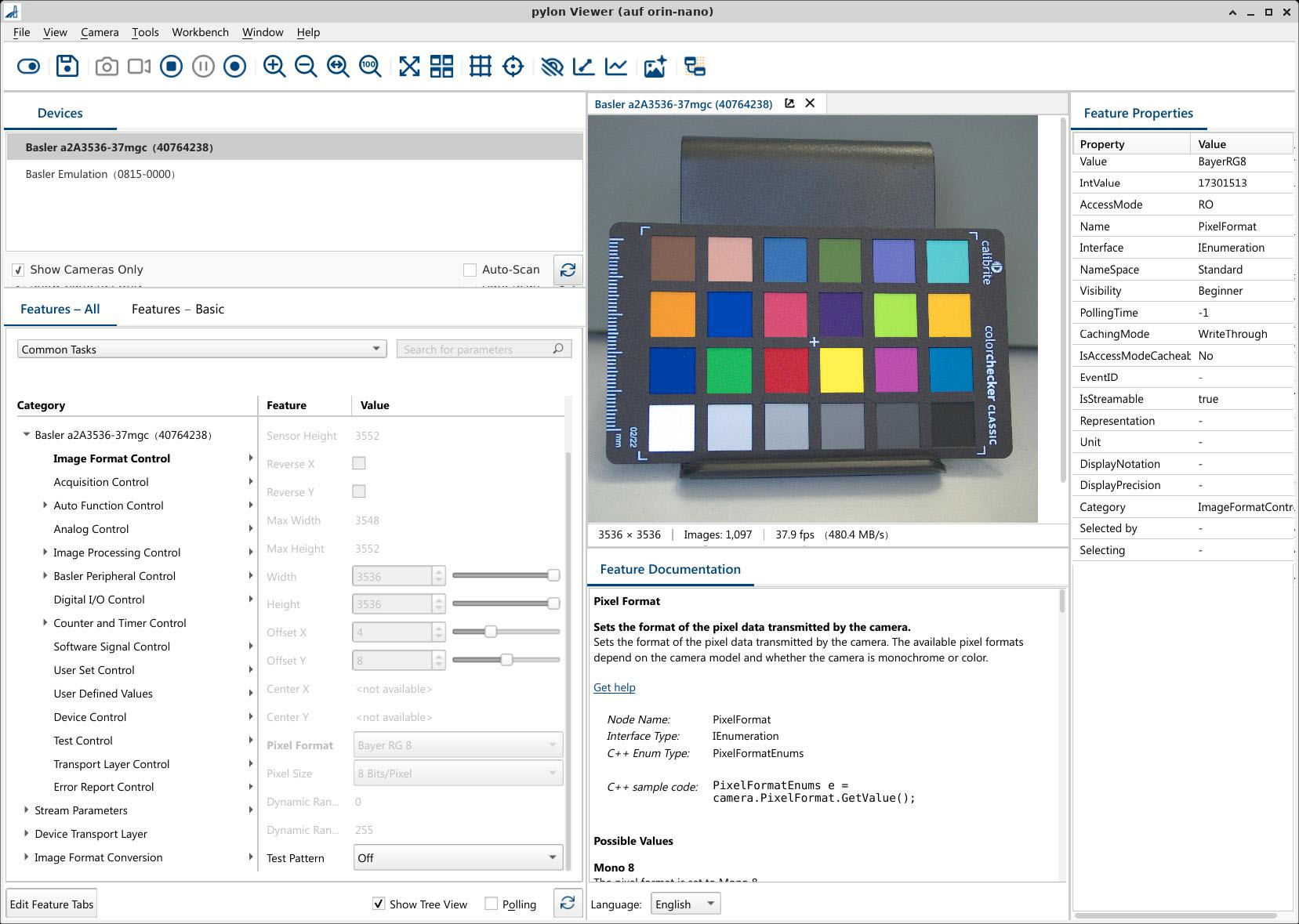
安装成功后,重启系统,然后通过 Ubuntu 应用程序启动器中的图标或通过终端启动 pylon Viewer(见下文)。
信息
- 系统启动时,相机会接通电源。相机可能需要几秒钟才会显示在设备 (Devices) 窗格中。
- 如果相机未显示在设备 (Devices) 窗格中,请点击自动扫描 (Auto-Scan) 复选框旁边的刷新 (Refresh) 按钮。
配置#
- 根据您安装的相机数量,您必须在带宽管理器 (Bandwidth Manager) 中调整相机的带宽管理。
信息
默认情况下,每台相机的最大可能带宽会通过 CSI 接口分配给 SoC。您可以在带宽管理器 (Bandwidth Manager) 中更改此分配。请参阅优化带宽消耗。
更多信息#
- 有关 GMSL 相机的常规信息,请参阅常规信息主题。
- 有关配置 Basler ace 2 GMSL 相机的信息,请参阅配置 Basler GMSL 相机主题。