Configuring Basler GMSL Cameras#
Before you start#
Make sure that the following steps have been executed and are available before starting the configuring procedure of the GMSL cameras:
- Internet connection is available.
- Make sure, that you installed the following items:
- 软件安装 (Linux)
- Camera Enablement Package (GMSL Cameras)
- Hardware Installation (GMSL Cameras) (cameras, lens, cables etc.)
Configuring GMSL Cameras#
The following sections show you how to configure one or multiple GMSL cameras:
Configuring a Single ace 2 GMSL Camera#
For a first view of the images in the pylon Viewer:
信息
- If a camera is powered over the coax cable (PoC), it may be automatically switched off during shutdown and reboot.
- The detection of GMSL cameras — whether triggered periodically by the Auto-Scan function or manually via the Refresh button — briefly interrupts the software connection to any connected GMSL camera. If a GMSL camera is already open and streaming image data, the stream will be interrupted and must be restarted manually.
- Make sure that the system components are powered (i.e., GMSL camera and host system (deserializer inclusive)).
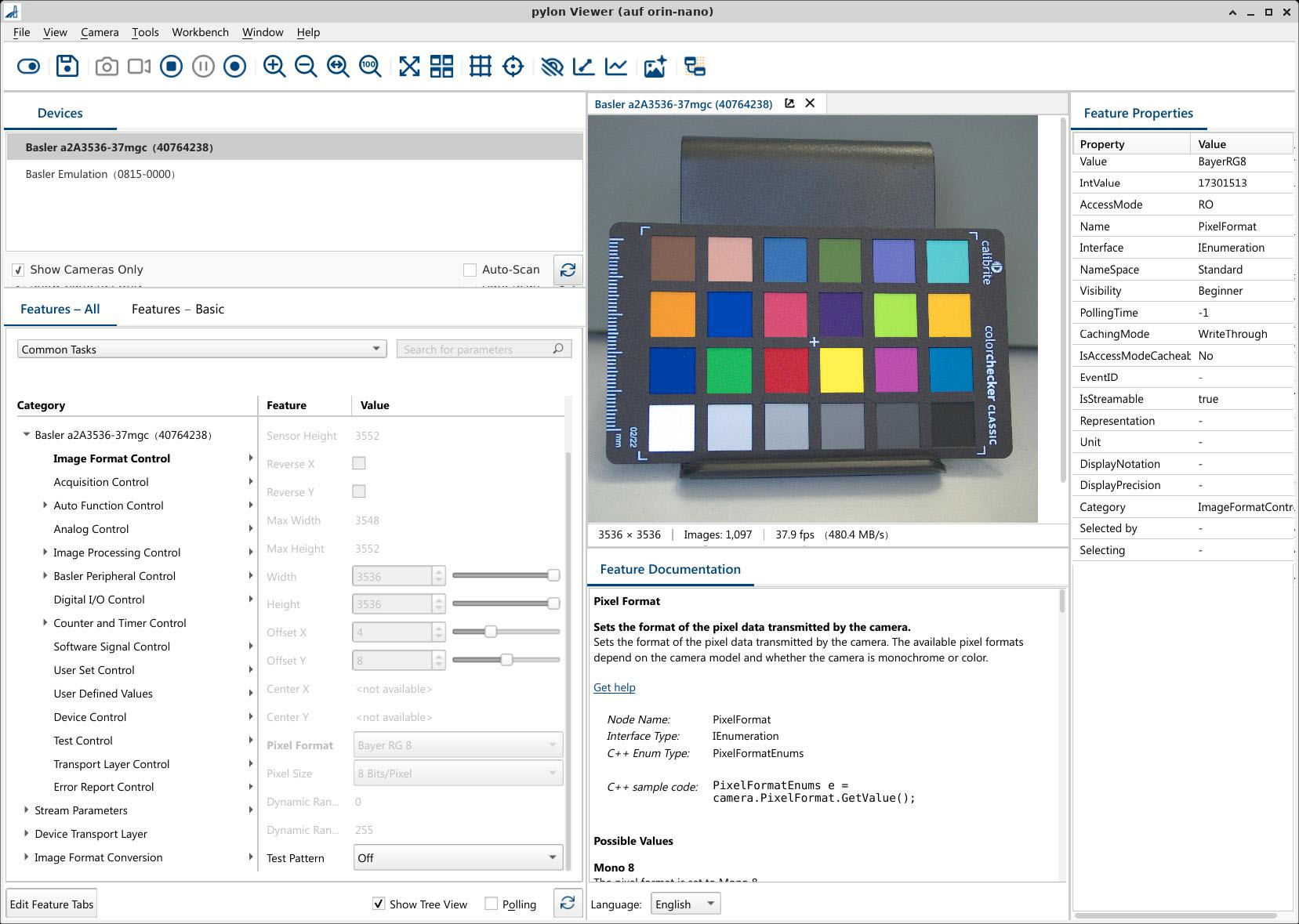
- Start the pylon Viewer.
The pylon Viewer automatically detects the connected cameras.
During the camera enumeration, the camera supply is switched on. It may take a few seconds, depending on the host system, before the camera appears in the Devices pane. - Make sure that the Auto-Scan check box is deactivated.
- If the cameras are not automatically detected, click the Refresh icon to the right of the Auto-Scan check box.
-
Double-click the desired camera in pylon Viewer.
The device tree opens showing parameters for configuring the camera.
-
To configure the parameters, enable the Show Tree View check box. Otherwise, the parameters are all listed in the same category.
- You can now acquire frames using the Continuous Shot acquisition mode
or the Single Shot acquisition mode
. - Configure the camera with your custom settings as desired (e.g., define how you want to trigger (see Triggered Image Acquisition) and what Features you want to enable and configure).
信息
Depending on your host system, for each Basler ace 2 GMSL camera you can configure a number of link signals [i.e., virtual I/O signals]. To find out how many link signals are available for your camera model, check the "General Specifications" table in your camera topic.
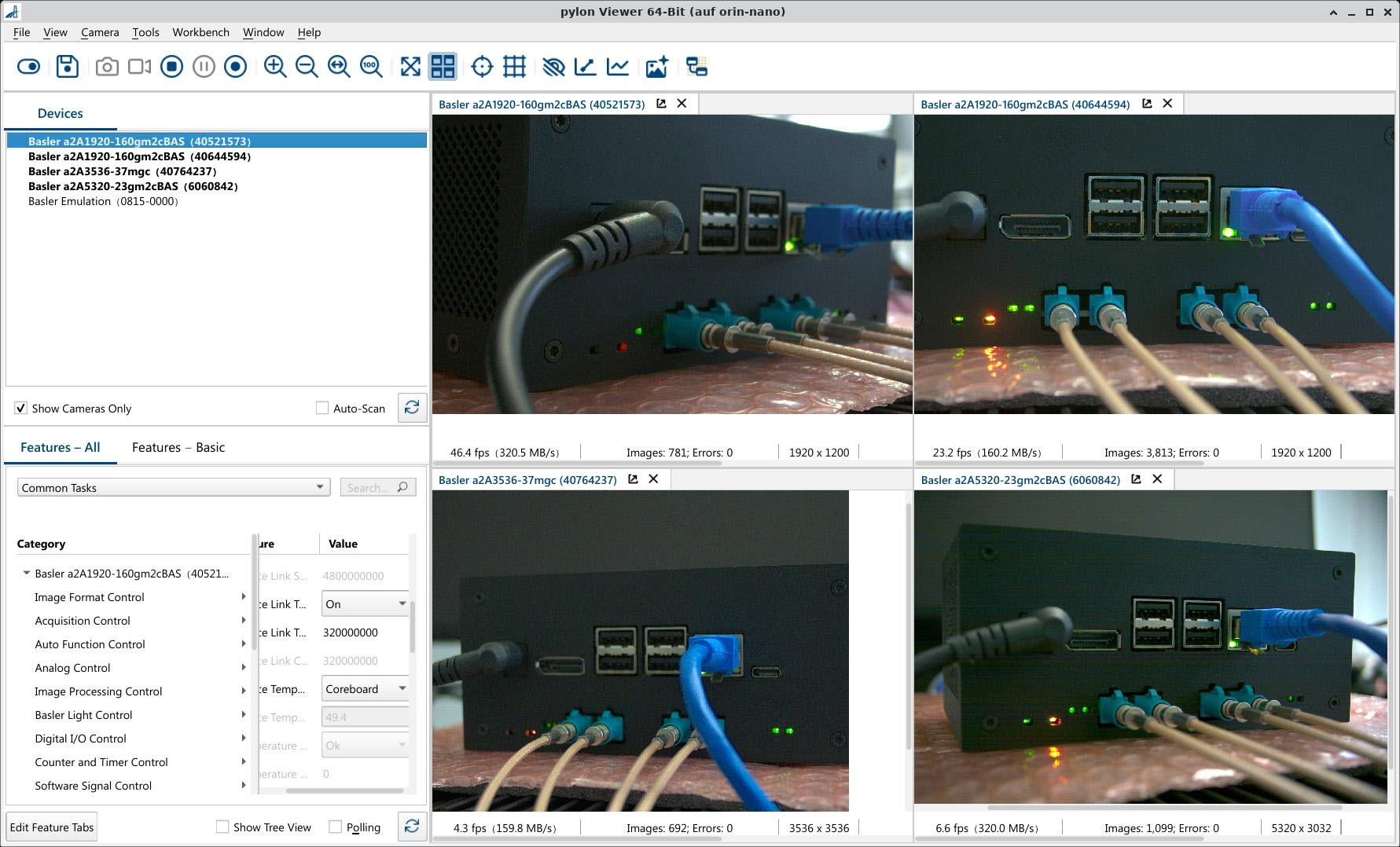
Configuring Multiple ace 2 GMSL Cameras#
- Make sure that the system components are powered (i.e., GMSL cameras and host system (deserializer inclusive)).
- Execute steps 2. to 5. as described in the Configuring a Single ace 2 GMSL Camera section for all connected ace 2 GMSL cameras.

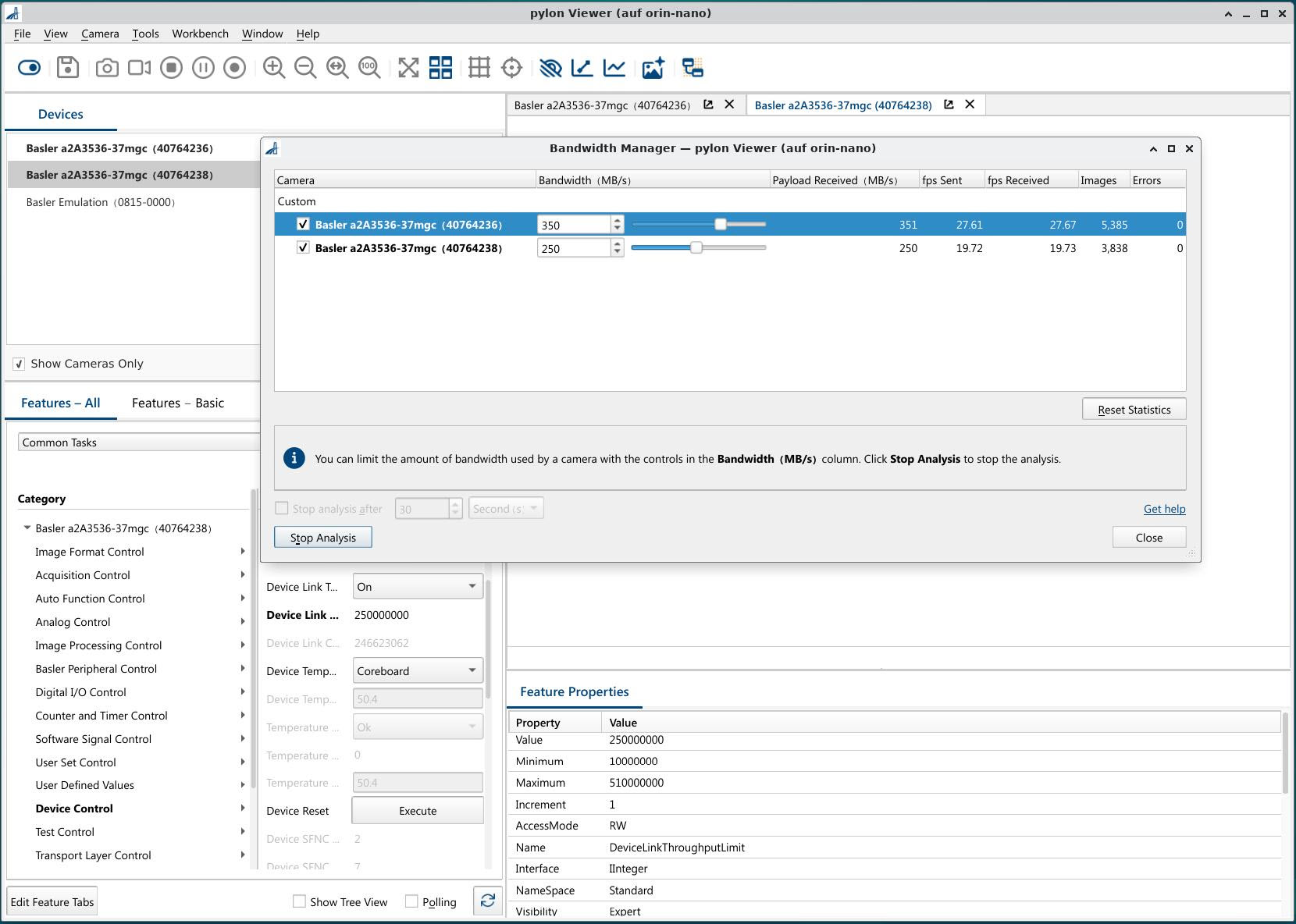
- If you connected several GMSL cameras during the hardware installation, check the bandwidth settings via the Bandwidth Manager.
-
If you want to optimize the bandwidth settings or change the bandwidth assignement, see the Optimizing Bandwidth Consumption section.
- The available bandwidth depends on the hardware configuration and can vary between different host systems.
- By default, the maximum possible bandwidth for each camera is assigned to the SoC via the CSI interface.
- In many host systems, two or four GMSL ports are multiplexed to a single MIPI D-Phy interface, sharing its available data bandwidth. If you require another bandwidth assignment for your cameras, configure the bandwidth for each camera via the Bandwidth Manager.
- You can save the adapted bandwidth values in a user set so that the camera wakes up with the stored settings after a restart (in pylon Viewer via the File Access command in the Camera menu).
-
Continue with steps 6. to 8. as described in the Configuring a Single ace 2 GMSL Camera section.
Execute the configuring steps for each GMSL camera you use in your system.
信息
If the bandwidth is not correctly set (e.g., the required bandwidth exceeds the available bandwidth), this can lead to incomplete images or images that are not displayed.