VisualApplets Licensing#
- Install the software on your computer
- Use a dongle holding the VisualApplets license(s) you have purchased.
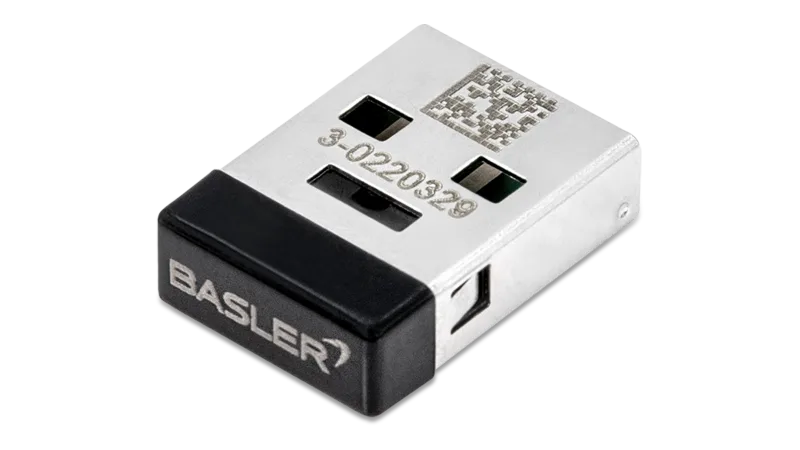
For VisualApplets licenses, you need to use a CmStick Basic Dongle (Wibu Systems AG).

You can either use a CmStick dongle you order together with your VisualApplets license, or a CmStick dongle you already have and also use for other licenses. If you use a CmStick dongle you already use, or if you want to migrate from VisualApplets 2 to visualApplets 3, you have to add the appropriate license file to the CmStick dongle (see Adding or Updating Licenses). You use always one license file for VisualApplets.
Info
Without access to a dongle with the VisualApplets IDE Software License, your VisualApplets installation works in demo mode only. This means you can't save or build designs into hardware applets.
You can order the CmStick Basic Dongle via the Basler website.
Available Licenses#
VisualApplets IDE Software License#
For using VisualApplets, you need the VisualApplets IDE Software License.
For further information about VisualApplets licenses, contact Basler Support.
Mode of Use#
There are two ways of licensing your software:
- Stand-alone license (local dongle), see Using the Stand-Alone License
- Floating license (network dongle), see Using the Floating License
Using the Stand-Alone License#
Requirements:
- Dongle: Make sure you have a CmStick (Wibu Systems AG) available that contains your VisualApplets license.
- Installation: VisualApplets is installed on the PC.
To use VisualApplets with a local license:
- Put the CmStick dongle containing your VisualApplets license into a free USB slot of your PC.
- You don't need to restart your PC. Just (re)start VisualApplets. Without any additional entries you are able to start working with VisualApplets.
How to update your dongle with a new (extended) license, containing, for example, or additional libraries, see Adding or Updating Licenses.
Using the Floating License#
Requirements:
- Dongle: Make sure you have a CmStick (Wibu Systems AG) available that contains your VisualApplets license.
- License File: Make sure you have the VisualApplets license also available in *.txt format.
- Installation: VisualApplets is installed on the PCs on which it is intended to be used.
To use VisualApplets with floating license:
- Put the CmStick dongle that contains your VisualApplets floating license into a free USB slot of your network server.
- Install the CmStick User Runtime software to this network server. You can download the software from www.wibu.com.
- Save the license file *.txt to a place that is available from the local VisualApplets installation. (Save it either to a network server, or to the file system of each local machine.)
-
On each local machine, set the following environment variables:
VA_LICENSE_SERVER: Specify here the name of you network server.VA_LICENSE_FILE: Specify here the path to and the name of the license file *.txt.
Now, you can use the floating licenses on all local machines on which you have set the environment variables and that have access to the network server and to the license file *.txt.
If you want to enlarge the number of users contained in your floating license, or if you want to upgrade from a local (node-locked) license to a floating license, contact Basler Support.
How to update your dongle with a new (extended) license, containing, for example, or additional libraries, see Adding or Updating Licenses.
Adding or Updating Licenses#
If you come from VisualApplets 2 and want to use VisualApplets 3, you need to update your VisualApplets license on the dongle hardware.
To update your license, proceed the following steps:
- Request your license file from Basler. Communicate your dongle number in your request message.
- Store your individual license file on your file system.
- Insert the VisualApplets dongle into a free USB slot on your PC.
-
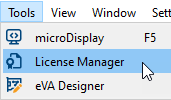
Open VisualApplets 3 (in demo mode) and from the Tools menu, select menu item License Manager.

-
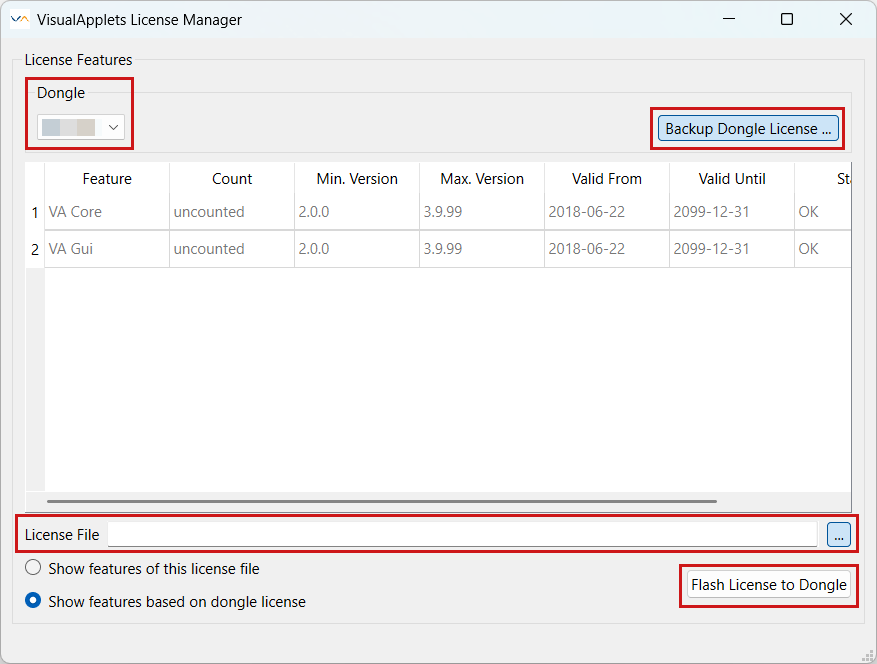
The License Manager window opens:

-
Option: If you already have a license and you want to save a backup file of the license currently active on your dongle, click the Backup Dongle License button.
-
To add a new dongle, select the number of the dongle that is used for the VisualApplets license (the number of the dongle you find directly on the dongle hardware item).
-
Alternatively to adding a dongle, you can add a new license file from your file system.

-
Use option Show features of this license file. Now, the components which are part of the new license are displayed. You can switch between the two radio buttons to compare the new license with the license that is currently active on your dongle.
- If you are satisfied with the contents of the new license file, click button Flash License to Dongle.