GPIO 连接器(CoF 采集卡)#
这使您可以建立详细且复杂的触发系统,包括:
- 从外部设备(如 Shaft Encoders、光栅等)接收触发信号(触发输入)。
- 将触发信号从图像采集卡发送到外部设备(如相机、照明设备等)(触发输出)。
- 接收软件触发。
信息
imaFlex 2 Dual 100 采集卡的触发必须通过 applet 进行配置。虽然本主题介绍了硬件接口和物理连接,但软件配置无法使用标准的触发和 GPIO 配置工具(例如 gpioTool 或 Pylon 参数)完成。有关通过 applet 配置触发的详细信息,请参阅以下文档:
- VisualApplets 文档,特别是 AppletProperties Operator Documentation
- 应用说明:为可编程图像采集卡设计信号处理小应用程序
- imaFlex 2 Dual 100 的标准 applet 文档中的Miscellaneous/GPIO Configuration章节
通过使用触发器,您可以控制图像采集过程。例如,您可以在特定时间点采集图像、定义何时接受相机传来的图像、指定应采集多少行或控制照明。
imaFlex 2 Dual 100 上的触发接口#
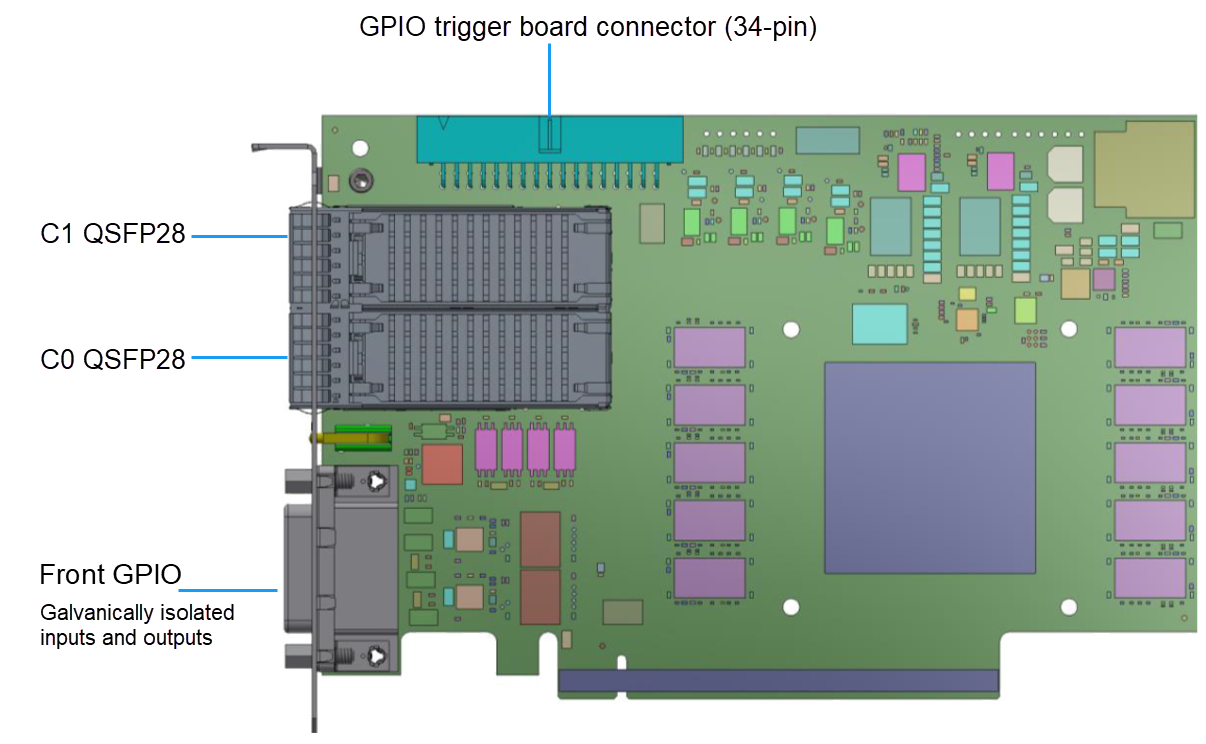
imaFlex 2 Dual 100 图像采集卡提供以下触发接口:
- 挡板上的 Front GPIO:一个 SUB-D 26 针连接器。
- GPIO 触发板连接器(34 针):一个 34 针插座(触发单元“GPIO”),用于连接附加触发板(Opto Trigger 5 或 TTL Trigger)。
- C0/C1 QSFP28 连接器:连接 CoF 相机时,通过 QSFP28 连接器传输多达 16 个 CoF 触发类型数据包。
输入配置#
imaFlex 2 Dual 100 提供两个独立的 GPI 组,每组包含 4 个 GPI。可以将会配置 GPI 组设置为差分或单端模式。此配置适用于该组内的所有 GPI 信号。其中一组可以为差分而另一组为单端,或者两组都为差分,亦或两组都为单端。单端为默认模式。
- 在差分模式下,您可以使用 Front GPIO 上的 GPI 在每组中接收最多 2 个差分信号,即两组合计最多 4 个。
- 在单端模式下,您可以使用 Front GPIO 上的 GPI 在每组中接收最多 4 个单端信号,即两组合计最多 8 个。
前置 GPI 组#
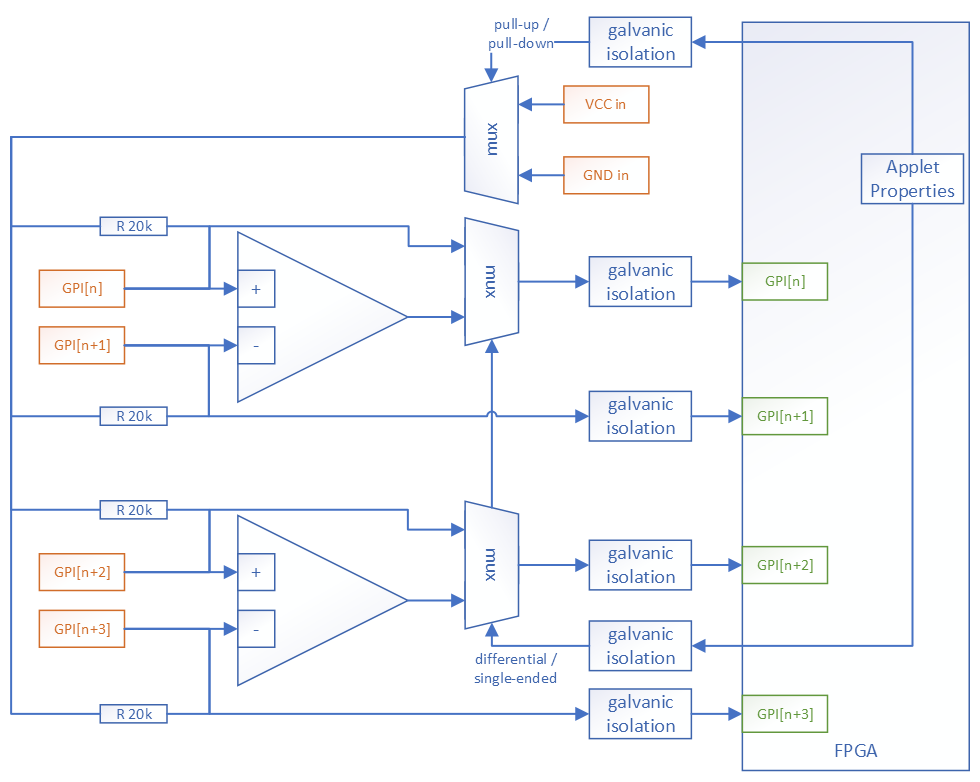
前置 GPIO 接口提供两个独立的 GPI 组,每组包含四个 GPI 信号。每组在连接器上都有专属的供电引脚,允许各组在不同的电压电平下运行。每组的配置通过软件在 FPGA 中执行,使用 AppletProperties VisualApplets 算子的参数。
可以配置每个 GPI 组,在其所有输入端上启用 20 kΩ 上拉电阻或 20 kΩ 下拉电阻。此外,该组的工作模式可以在差分和单端信令之间切换。
在差分模式下,只有 GPI[n] 和 GPI[n+2] 携带有效信息。中间的信号(GPI[n+1] 和 GPI[n+3])不提供有意义的数据,应予忽略(视作无关项)。在单端模式下,该组的所有四个 GPI 信号均可用并携带有效信息。
所有组的 GPI 及其电源和控制信号均经过电隔离。
下图说明了单个 GPI 组的逻辑框图。
差分模式#
在差分模式下,每个 Front GPI 组的四个 GPI 被配置为接收差分信号。只有偶数编号的 GPI 信号向 FPGA 提供有意义的数据。相应的奇数编号 GPI 必须被视为无关信号。
Front GPIO 接口由两组组成:
- Group 03:GPI[0], GPI[1], GPI[2], GPI[3]
- Group 47:GPI[4], GPI[5], GPI[6], GPI[7]
GPI 编号与 VisualApplets 算子中显示的 FPGA applet 编号直接对应(1:1 映射)。
下表描述了当两组均配置为差分操作时每个 GPI 引脚的含义。
| 引脚编号 | 信号类型 | 参考信号 |
|---|---|---|
| 1 | FrontGpi6,差分输入 6 (+) | VccIn47(引脚 19)/ GndIn47(引脚 20) |
| 2 | FrontGpi7,差分输入 6 (-) | VccIn47(引脚 19)/ GndIn47(引脚 20) |
| 3 | FrontGpi2,差分输入 2 (+) | VccIn03(引脚 21)/ GndIn03(引脚 22) |
| 4 | FrontGpi3,差分输入 2 (-) | VccIn03(引脚 21)/ GndIn03(引脚 22) |
| 10 | FrontGpi4,差分输入 4 (+) | VccIn47(引脚 19)/ GndIn47(引脚 20) |
| 11 | FrontGpi5,差分输入 4 (-) | VccIn47(引脚 19)/ GndIn47(引脚 20) |
| 12 | FrontGpi0,差分输入 0 (+) | VccIn03(引脚 21)/ GndIn03(引脚 22) |
| 13 | FrontGpi1,差分输入 0 (-) | VccIn03(引脚 21)/ GndIn03(引脚 22) |
| 19 | VccIn47(用于输入组 47 的隔离 VCC) | GndIn47(引脚 20) |
| 20 | GndIn47(用于输入组 47 的隔离接地) | VccIn47 (引脚 19) |
| 21 | VccIn03(用于输入组 03 的隔离 VCC) | GndIn03 (引脚 22) |
| 22 | GndIn03(用于输入组 03 的隔离接地) | VccIn03 (引脚 21) |
| 屏蔽 | GND(非隔离板端地 / 大地 / 支架) |
单端模式#
在单端模式下,Front GPI 组的 4 个 GPI 被配置为接收 4 个独立的单端信号。GPI 编号与 VisualApplets 算子中显示的 FPGA applet 编号直接对应(1:1 映射)。
下表描述了当两组均配置为单端操作时每个 GPI 引脚的含义。
| 引脚编号 | 信号类型 | 参考信号 |
|---|---|---|
| 1 | FrontGpi6,输入 6 | VccIn47(引脚 19)/ GndIn47(引脚 20) |
| 2 | FrontGpi7,输入 7 | VccIn47(引脚 19)/ GndIn47(引脚 20) |
| 3 | FrontGpi2,输入 2 | VccIn03(引脚 21)/ GndIn03(引脚 22) |
| 4 | FrontGpi3,输入 3 | VccIn03(引脚 21)/ GndIn03(引脚 22) |
| 10 | FrontGpi4,输入 4 | VccIn47(引脚 19)/ GndIn47(引脚 20) |
| 11 | FrontGpi5,输入 5 | VccIn47(引脚 19)/ GndIn47(引脚 20) |
| 12 | FrontGpi0,输入 0 | VccIn03(引脚 21)/ GndIn03(引脚 22) |
| 13 | FrontGpi1,输入 1 | VccIn03(引脚 21)/ GndIn03(引脚 22) |
| 19 | VccIn47(用于输入组 47 的隔离 VCC) | GndIn47(引脚 20) |
| 20 | GndIn47(用于输入组 47 的隔离接地) | VccIn47 (引脚 19) |
| 21 | VccIn03(用于输入组 03 的隔离 VCC) | GndIn03 (引脚 22) |
| 22 | GndIn03(用于输入组 03 的隔离接地) | VccIn03 (引脚 21) |
| 屏蔽 | GND(非隔离板端地 / 大地 / 支架) |
同时使用差分模式和单端模式
每个 GPI 组独立运行,因此一个组可以配置为差分模式,而另一个组配置为单端模式。一个组的配置对另一个组的操作没有影响。
物理输入的电气特性#
| 描述 | 最小值 | 典型值 | 最大值 | 单位 |
|---|---|---|---|---|
| 供电电压 | 4.5 | 26 | VDC | |
| 输入阈值 | 20 % 供电电压 | VDC | ||
| 差分输入偏移电压 | 50 | mV | ||
| GPI 引脚偏置电流 | -25 | -400 | nA | |
| GPI 组电压 IN 处的总电流 | -50 | mA |
物理输入的时序特性#
| 描述 | 典型值 | 单位 |
|---|---|---|
| 传输延迟 | 300 | ns |
| 最小脉冲宽度 | 200 | ns |
| 最大频率 | 2.5 | MHz |
前置 GPO 组(触发输出)#
Front GPIO 接口由两组组成:
- 组 03:GPO[0]、[1]、[2]、[3]
- 组 47:GPO[4]、[5]、[6]、[7]
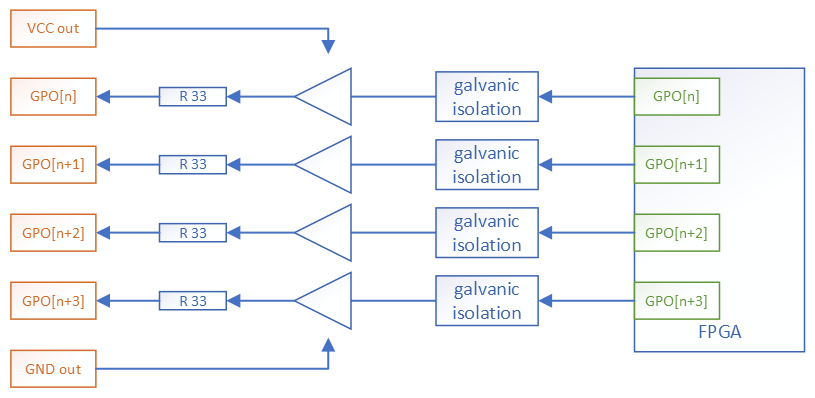
每个组在连接器上都有专属的电源引脚,也就是说,如果向组电源引脚外部供电 5 V,则该组中的输出 GPO 信号将是与 5 V TTL 兼容的经典 5 V CMOS 电平。外部电源范围可在 4.5 V 至 26 V 之间。
下图说明了单个 GPO 组的逻辑框图。
物理输出的电气特性#
| 描述 | 值 |
|---|---|
| 高输出电压 (VOH) | 最小 VCC 输出 – 0.4 V @ -6.5 mA |
| 低输出电压 (VOL) | 最大 0.4 V @ 6.5 mA |
| 输出电流 (IO) | ± 50 mA |
5 V 输出(最大电流 500 mA)
Front GPIO 连接器提供一个提供 5 VDC 的电压输出引脚。当没有外部电源可用时,该电源可用于为 GPO 和 GPI 电路供电。最大电流为 500 mA。
物理输出的时序特性#
| 描述 | 典型值 | 最大值 | 单位 |
|---|---|---|---|
| 上升/下降时间 | 3 | 30 | ns |
| 传输延迟 | 70 | ns |
GPIO Trigger Board 连接器(34 引脚)#
通过 GPIO 触发板连接器(34 引脚),您可以将采集卡连接到 Trigger Extension Board。
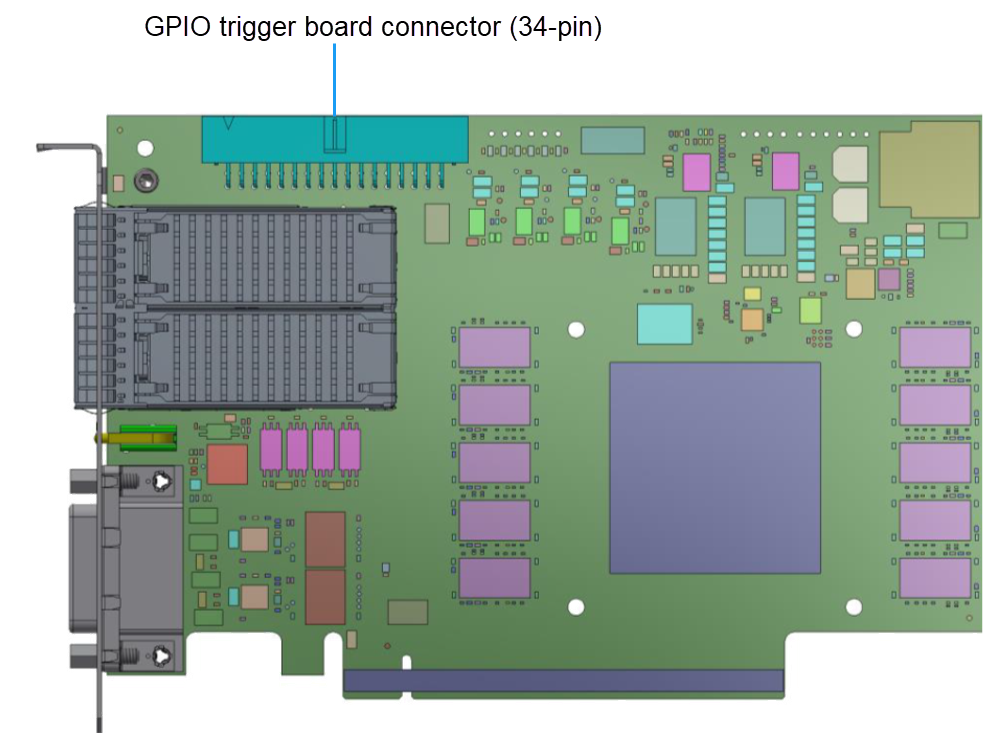
下图显示了采集卡与 Trigger Extension Board 配合使用的方式:
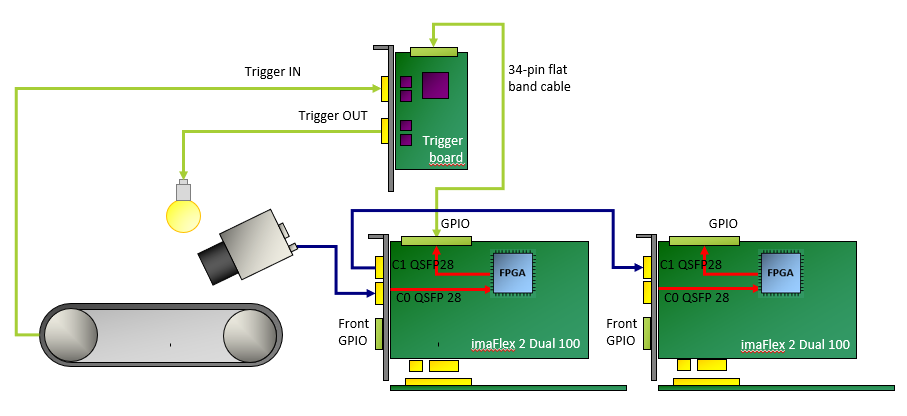
GPIO 触发板连接器提供:
- 8 个数字输入 (IN 0–7)
- 8 个数字输出 (OUT 0–7)。
这八个输入的编号从 0 到 7。这八个输出的编号范围为 0 到 7。
GPIO 连接器用于连接触发扩展板。触发扩展板物理接口的配置方式(TTL 或光耦隔离、上拉、下拉、差分或单端信号)取决于您所使用的触发扩展板。有关详细信息,请参阅 Opto-Coupled Trigger 5 或 TTL Trigger。
有关安装说明,请参阅 Installing a Trigger Extension Board。
有关将一个或多个采集卡设备连接到一个或多个触发板的详细信息,请参阅 Synchronizing Multiple Boards。
GPIO Trigger Board 连接器引脚布局(34 引脚)#
34 引脚排线可将采集卡连接到外部触发板。所有 Basler 采集卡均提供 8 个数字输入 (IN 0–7) 和 8 个数字输出 (OUT 0–7)。
您可以通过 applet 配置各个输入和输出的使用方式。请参阅您正在使用的 applet 的文档。
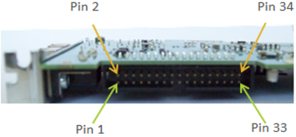
| 引脚编号(奇数) | I/O 名称 | 引脚编号(偶数) | I/O 名称 |
|---|---|---|---|
| 1 | Trigger Output 0 | 2 | +3.3 VDC |
| 3 | Trigger Output 1 | 4 | +3.3 VDC |
| 5 | Trigger Output 2 | 6 | GND |
| 7 | Trigger Output 3 | 8 | GND |
| 9 | Trigger Input 0 | 10 | GND |
| 11 | Trigger Input 1 | 12 | GND |
| 13 | Trigger Input 2 | 14 | GND |
| 15 | Trigger Input 3 | 16 | GND |
| 17 | Trigger Output 4 | 18 | GND |
| 19 | Trigger Output 5 | 20 | GND |
| 21 | Trigger Output 6 | 22 | GND |
| 23 | Trigger Output 7 | 24 | GND |
| 25 | Trigger Input 4 | 26 | GND |
| 27 | Trigger Input 5 | 28 | GND |
| 29 | Trigger Input 6 | 30 | GND |
| 31 | Trigger Input 7 | 32 | VCCIO (+2.5 VDC / 3.3 VDC) |
| 33 | Presence Detect | 34 | VCCIO (+2.5 VDC / 3.3 VDC) |
所有 GPO 信号均由推挽驱动器驱动。
请参考 Opto Trigger 5 和 TTL Trigger 章节了解如何连接和使用 trigger extension board。请参考具体的 applet documentation 了解如何使用触发信号。
将带或不带电源的 Trigger Sources 连接到前置 GPIO#
通常有 2 种类型的触发设备:
- 为其 GPIO 提供电源的设备,以及
- 需要外部供电的设备。
imaFlex 2 Dual 100 可与这两种类型的设备结合使用。
为其 GPIO 提供电源的源设备#
本节展示了一个示例,说明如何将为 imaFlex 2 Dual 100 提供 GPIO 电源的旋转编码器连接到该采集卡。旋转编码器以差分方式连接到 GPI 组 03。
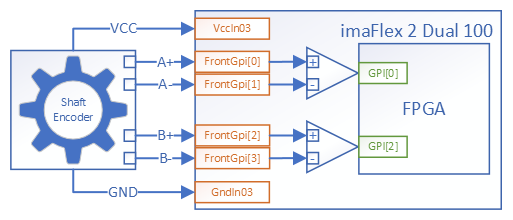
其 GPIO 需要外部电源的源设备#
本节展示了一个示例,说明如何将需要外部 GPIO 电源的旋转编码器连接到 imaFlex 2 Dual 100。
除了连接旋转编码器供电引脚外,还务必将 VccIn03 连接至 5VOutIso,并将 GndIn03 连接至 GndOutIso。这是为采集卡 GPI 电路供电所必需的。
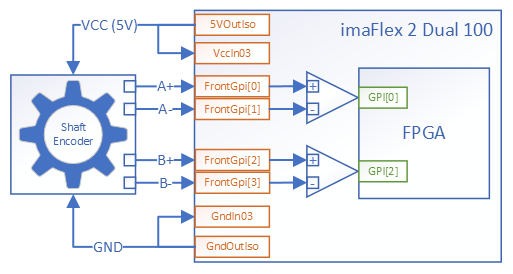
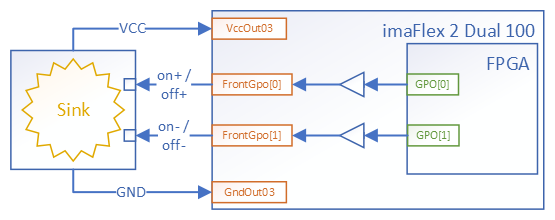
为其 GPIO 提供电源的宿设备#
本章展示了一个示例,说明如何将为 imaFlex 2 Dual 100 提供 GPIO 电源的控制宿侧设备连接到该采集卡。
控制宿侧设备以差分方式连接到 GPO 组 03 的 port[0] 和 port[1]。
需要为其 GPIO 提供电源的宿设备#
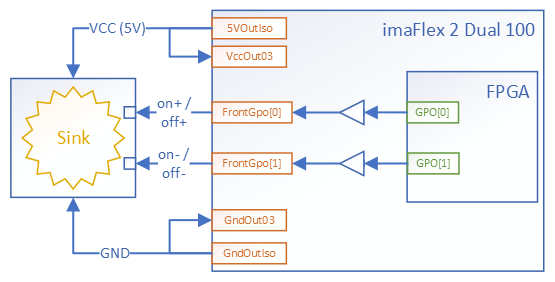
本节展示了一个示例,说明如何将需要外部 GPIO 电源的宿侧设备连接到 imaFlex 2 Dual 100。
控制集电极差分连接到 GPO 组 03 的 port[0] 和 port[1]。
除了连接灌电流设备供电引脚外,还务必将 VccOut03 连接至 5VOutIso,并将 GndOut03 连接至 GndOutIso。这是为采集卡 GPO 电路供电所必需的。
5 V 采集卡外部电源
每款 Basler 采集卡都提供 5 V 电源,用于连接需要外部 GPIO 电源的外部设备。在所有提供电源的 GPIO 端口上,这 5 V 电流最大可承载 500 mA。
Trigger Extension Boards#
Trigger Extension Board 可用于以极低的延迟执行各种任务,例如:
- 控制相机
- 控制外围设备
- 同步多个采集卡
所有适用于 Basler 采集卡的 Trigger Extension Board 都提供以下功能:
- 8 个数字输入(IN 0–7)(8 个单端信号或 4 个差分信号)
- 8 个数字输出 (OUT 0–7)。
有关更多信息,请参见 Opto-Coupled Trigger 5 和 TTL Trigger。
Applet 专用触发设置#
通过 applet,您可以配置如何使用 trigger extension board 的各个 I/O。请参考 Configuring the Trigger Options within an Applet 以及您正在使用的特定 applet 的文档。
在 Applet 中配置触发选项#
您可以按如下方式访问 Applet 的触发配置:
- microDisplay X:允许您通过 GUI 触发参数值。
- Framegrabber API:允许将采集卡集成到特定的图像处理应用程序中。
对触发系统的要求因您的应用而异:
- 对于面扫描,只需要一种触发类型(帧触发)。
- 对于线阵扫描,需要两种触发类型:行触发(为每行发送一个触发脉冲)和帧触发。在线阵扫描应用中,帧触发控制图像中附加的行数。
有关可用参数(以及设置可能产生的影响)的信息,请参考您正在使用的 applet 的文档。