带宽管理器#
Bandwidth Manager 仅在 Windows 和 Linux 版本的 pylon Viewer 中可用。您可以通过 Tools 菜单打开 Bandwidth Manager,或者通过在 Devices 窗格中右键单击相机来打开。
信息
带宽管理器支持 1GigE、5GigE 和 10GigE 网络适配器。它可以确定可用带宽,并相应地在相机之间分配带宽。
将多个相机连接到单台计算机时,由于相机彼此争夺可用带宽,性能可能成为问题。为避免此类冲突,请使用带宽管理器。该工具一目了然地向您显示以下信息:
- 您系统上安装的USB 3.0主机控制器和GigE网络适配器,以及连接到它们的相机。
- 每个 USB 3.0 主机控制器可用的总带宽(近似值)
- 由相机发送、计算机接收到的数据量
- 由相机发送、计算机接收到的每秒帧数 (fps)
- 拍摄的图像总数
- 传输错误的数量,即不完整的图像和跳过的图像
根据此信息,您可以使用带宽管理器来优化所连接相机的带宽消耗。
带宽管理器概述#
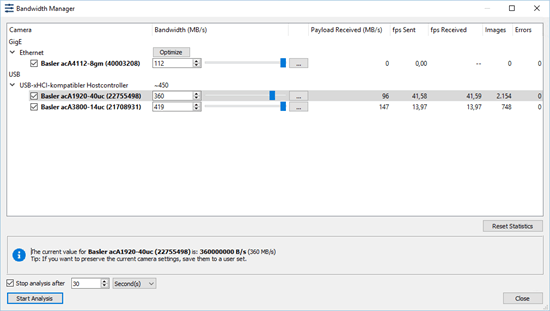
带宽管理器对话框列出了您电脑上所有的 USB 3.0 主机控制器和 GigE 网络适配器以及连接到它们的相机。它使您可以将 USB 3.0 主机控制器或网络适配器上可用总带宽的份额分配给每个相机。这样,您只需为相机分配其实际需要的带宽量,从而将资源省下来供其他设备使用。
USB 3.0 相机:Bandwidth (MB/s) 列还列出了相机连接到的 USB 3.0 主机控制器上可用的带宽。这是一个可用最大带宽的近似值。
GigE 相机:每个网卡都有一个 Optimize 按钮。您可以单击此按钮来优化此网卡上所有选定相机的带宽。您必须至少选择一台相机,该按钮才会可用。
如果您的计算机连接了 GigE 相机并首次打开 Bandwidth Manager,将弹出一个对话框,允许您在单个步骤中优化所有 GigE 相机。
优化包括调整 Packet Size 和 Inter-Packet Delay 设置。如果有多台相机连接到网卡(例如通过交换机),则可用带宽将在所有选定相机之间共享。
如果要自行更改相机设置,请转到 Features - All 窗格。请注意,有几个相机设置会影响带宽消耗,例如 ROI 的大小、Pixel Format 等。
优化带宽消耗#
为了优化系统的性能,首先应分析当前状况。一旦有了概览,就可以微调带宽消耗。您可以动态更改分配给每个相机的带宽,从而非常轻松地在多个设备之间找到完美的平衡。
优化带宽消耗:
- 在您要分析的相机上停止连续图像采集以及所有录制。
- 打开带宽管理器。
- 选择要分析带宽的相机。
-
单击开始分析。
相机右侧的列将填充数据。在图像列中,您可以查看所拍摄图像的总数。如果有任何图像未完成传输或被完全跳过,它们将列在错误列中。
分析运行时,您可以使用微调框或旁边的滑块来更改特定相机可用的带宽。您将立即在显示的数据中看到更改的效果。信息
带宽值是相机可用的上限,不能超过该值。因此,如果相机未充分利用带宽,更改带宽将不会产生明显效果。只有降幅导致相机无法再达到其帧速率的情况下,您才能看到接收的有效负载 (MB/s) 值的下跌趋势。请注意,有效负载值通常低于可用带宽,因为未包括同时发送的任何开销。
-
对结果满意后,单击停止分析。
“带宽管理器”对话框将显示所选相机的当前带宽。您可以记好此数据以便在其他应用中使用。
您可以选择停止分析倒计时选项并指定一个时间段,在该时间段后将自动停止分析,而不是手动停止分析。如果您想长时间收集数据,这种方法非常有用。信息
在 Bandwidth Manager 对话框中,为了提高可读性,带宽以 MB/s 为单位给出。根据您的相机,这对应于 Device Control 类别中的 Device Link Throughput Limit 值,或 Device Transport Layer 类别中的 Device Current Throughput 值。这两个值均以 B/s 为单位给出。
-
可选:将当前的相机设置保存到 user set 中以保留它们。否则,如果断开相机连接,您将必须重新进行带宽配置。