Image Transformer vTool#
下载 pylon Software Suite 即可使用 Image Transformer vTool。
运作原理#
有两种变换输入模式:
- Parameter:允许您使用可用参数分别指定变换值,例如水平和垂直平移、绕中心或原点旋转以及水平和垂直 Scaling。
- Matrix:允许您直接编辑变换矩阵,例如在预先已知变换矩阵或值来自其他来源的情况下。
对图像进行变换可能会导致图像的部分区域超出原始图像范围。例如,如果您旋转图像,其角部可能会被裁剪掉。为防止出现这种情况,提供了 Image Resize Mode,允许您指定是保留图像的原始大小(这意味着会丢失图像内容),还是手动或自动调整其大小。
配置 vTool#
若要配置 Image Transformer vTool,请在 Workbench 中双击它。随后将打开一个对话框,其中显示所有可用设置。或者,您也可以在 Features - All 窗格中找到相同的设置。
输入#
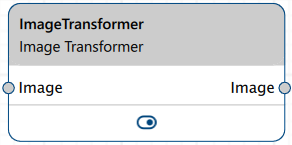
图像#
直接接受来自 Camera vTool 或任何其他输出图像的 vTool 的图像。
- 数据类型:图像
- 图像格式:8 位到 16 位单色或彩色图像(请参阅支持的 Pixel Format)
输出#
图像#
返回与输入图像具有相同数据类型的变换后图像。
- 数据类型:图像
- 图像格式:彩色或单色图像(请参阅支持的 Pixel Format)
支持的 Pixel Format#
根据输入图像的 Pixel Format,Image Transformer vTool 会输出以下 Pixel Format:
| 输入 Pixel Format | 输出 Pixel Format |
|---|---|
| Bayer GR 8 | RGB 8 Planar |
| Bayer GR 16 | RGB 16 Planar |
| Bayer RG 8 | RGB 8 Planar |
| BGRA 8 Packed | RGB 8 Planar |
| BGR 8 Packed | RGB 8 Planar |
| Mono 8 | Mono 8 |
| Mono 10 | Mono 10 |
| Mono 12 | Mono 12 |
| Mono 16 | Mono 16 |
| RGB 8 Packed | RGB 8 Planar |
| RGB 16 Packed | RGB 16 Planar |
| RGB 8 Planar | RGB 8 Planar |
| RGB 16 Planar | RGB 16 Planar |