使用 pylon Viewer 配置 CXP 线扫描相机和采集卡#
有关要求和可能的拓扑结构的信息,请参阅 General Information。
安装 pylon Software Suite#
要安装配合 Basler racer 2 相机使用的 pylon Software Suite,请执行以下操作:
- 下载 pylon Software Suite 7.5.0 或更高版本。
- 启动安装程序并按照提示完成安装。
-
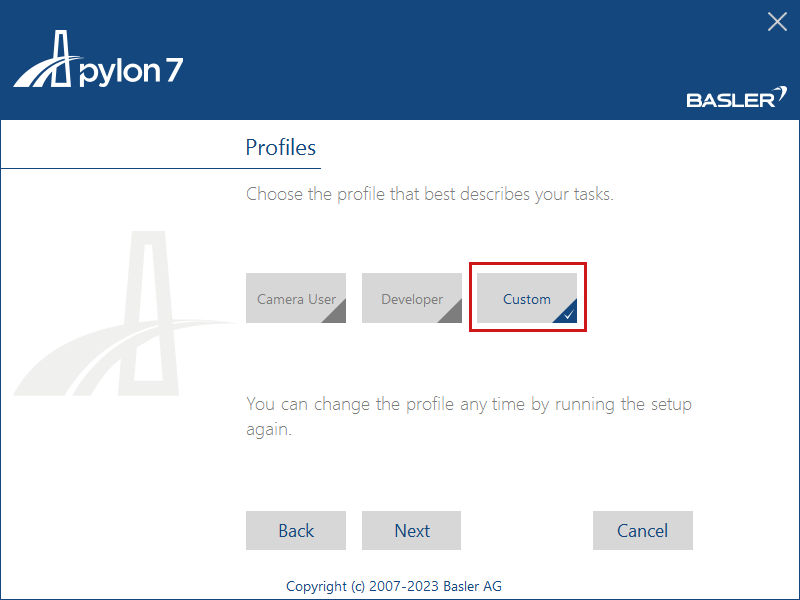
在 Profiles 对话框中,选择 Custom 安装。
-
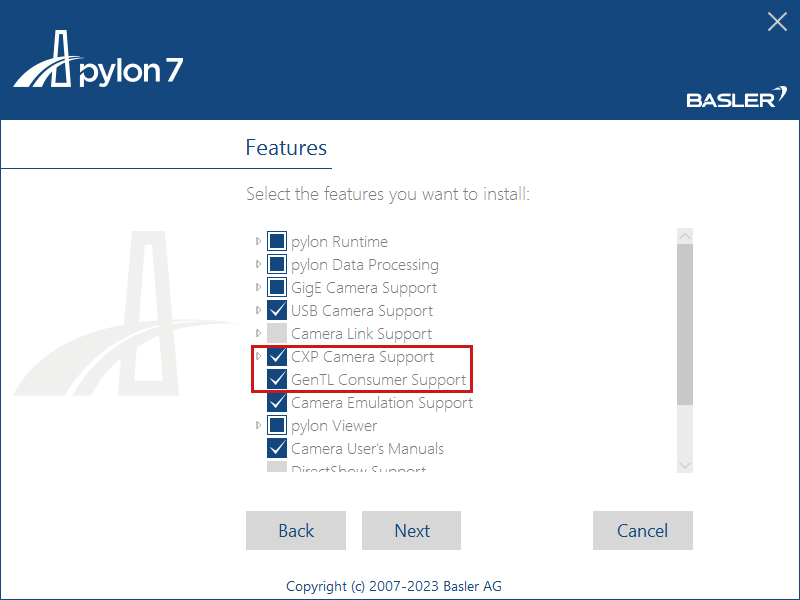
在 Features 对话框中,选择 CXP Camera Support 和 GenTL Consumer Support。
在 pylon Viewer 中为线扫描相机进行相机配置#
若要在 pylon Viewer 中初步查看图像:
- 启动 pylon Viewer。
-
加载所需的 Applet:
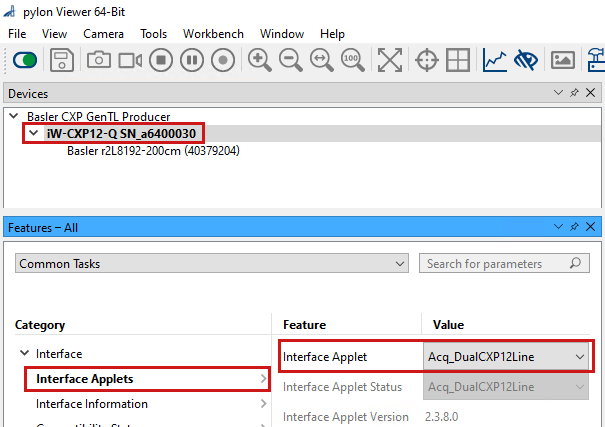
- 双击接口,即采集卡或接口卡。
- 从 Category 视图中选择 Interface Applet,并选择所需的 Applet。要为您的板卡和配置选择正确的 Applet,请参见 Possible Topologies。
-
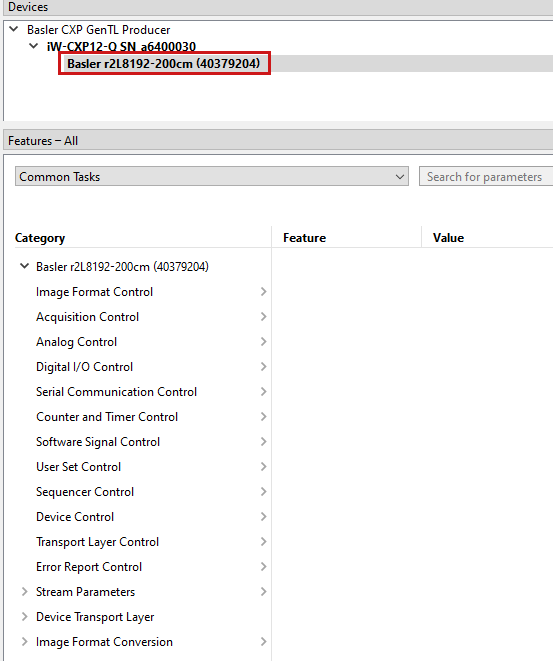
此时,采集卡的 FPGA 已配置好您的 Applet。pylon Viewer 会自动检测到相机。双击您的相机。设备树随即打开,显示用于配置相机和采集卡的参数:
-
要配置参数,请启用 Tree View。否则,所有参数将列在同一类别中。
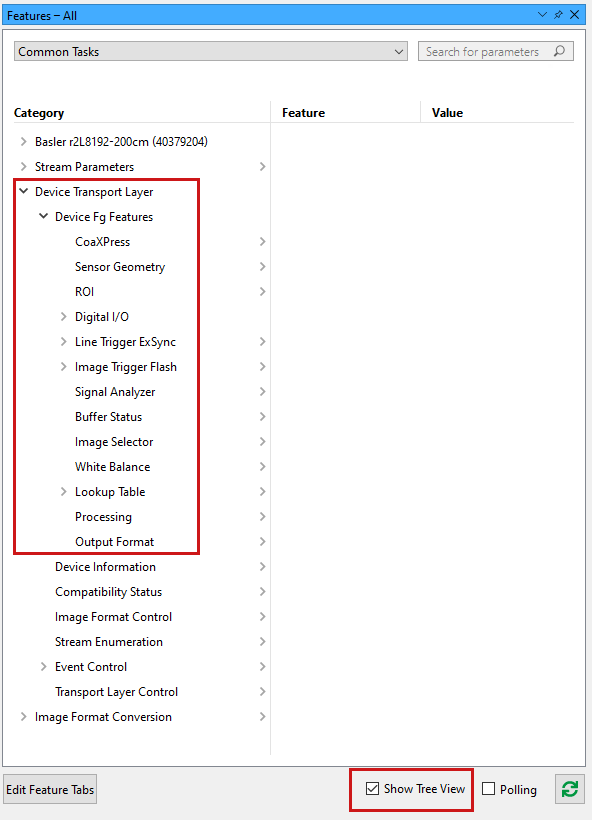
-
从 Category 视图中选择 ROI,并根据您的需求配置 ROI Width 和 Height。请注意,高度是合并为一个输出帧的指定相机行数。
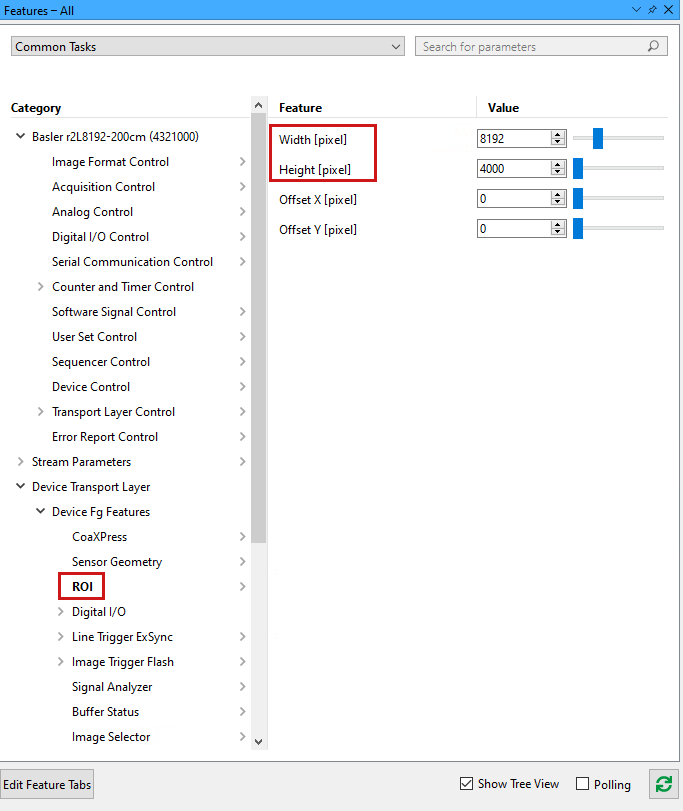
-
您现在可以使用以下工具采集帧: 连续拍摄 acquisition mode
 或 Single Shot acquisition mode
  .
. - 根据需要,使用您的自定义设置配置相机以及采集卡或接口卡。
- 有关 Trigger Mode 的信息,请参见 Triggered Image Acquisition 或知识库文章 Configuring a Single-Ended Line Trigger with CXP-12 Interface Card and a Basler racer 2 CXP Camera。