跳转到内容
STAGING SERVER
DEVELOPMENT SERVER

保存深度和图像数据#

图像的所有组件都可以各种格式保存为单独的文件。

This may be useful if you want to view the data in a different tool, for example, point cloud data in a point cloud processing tool, or if you want to share an image with others, for example, the depth map as a .png file. You can save individual images or a sequence of images.

Depth maps (color and grayscale versions) and intensity images can be saved as .png and .tiff files. Point clouds can be saved as .pcd and .ply files.

An additional benefit of the Save Depth and Image Data command is that it can automatically rotate a point cloud along the x axis by 180° when saving it. This is necessary because many common point cloud processing tools, such as MeshLab and CloudCompare, use right-handed coordinate systems with the y axis pointing up. The y axis of Basler 3D cameras is pointing down.

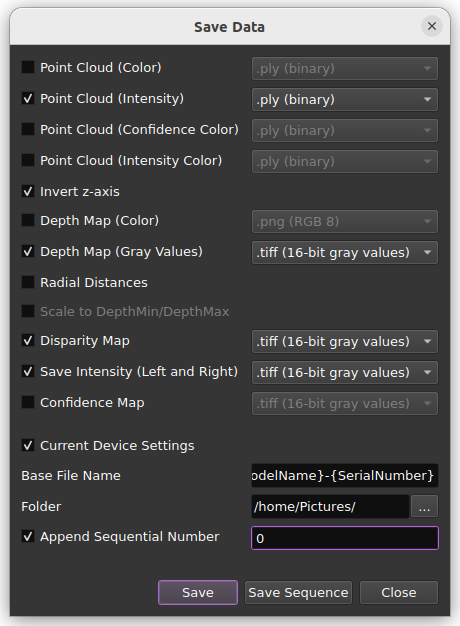
Because of this difference in the orientation of the y axis, those tools show the point clouds backwards and upside down. To make the point clouds compatible with those tools, they need to be rotated along the x axis by 180°. You can achieve this by selecting the Invert z-axis check box (enabled by default) in the Save Data dialog. The rotation is then done automatically when saving a point cloud to file.

pylon 3D Viewer User Interface

To save image data:

  1. 文件菜单中,单击保存深度和图像数据
  2. In the Save Data dialog, select the image components you want to save.
  3. (Optional) Select the Invert z-axis check box to rotate the point cloud by 180° along the x axis.
  4. (Optional) Select the Radial Distances check box to create range maps instead of depth maps.
  5. (Optional) Select the Current Device Settings check box to save the current camera settings in a .pfs file.
  6. Specify a base name for the output files.
  7. Specify the folder where the files will be saved.
  8. (Optional) Select Append Sequential Number to number files consecutively.
  9. Click Save to save a single frame, or click Save Sequence to save a sequence of frames.