C++ 程序员指南#
如果您是 pylon 的新用户,Basler 建议您先阅读 pylon C++ 程序员指南的 入门 部分,以熟悉 pylon C++ API。
C++ 编程示例#
The C++ samples are located in the C:\Program Files\Basler\pylon\Development\Samples\Stereo_ace\C++ folder.
The C++ samples are located in the /opt/pylon/share/pylon/Samples/Stereo_ace/C++/ folder.
The C++ samples are located in the /opt/pylon/share/pylon/Samples/Stereo_ace/C++/ folder.
构建示例的先决条件#
- pylon 26.06 或更高版本
- Visual Studio 2019 or above
- CMake 3.3 or above
- CMake 3.3 or above
- 可选:OpenCV 库
- 可选:Point Cloud Library (PCL)
构建示例#
- Copy the Development\Samples\Stereo_ace\C++ folder to a location where you have write permissions.
- Launch Microsoft Visual Studio.
- Click the Open a local folder button, navigate to the Samples\Stereo_ace\C++ folder, and press the Select button.
Wait until Visual Studio has finished generating the CMake cache. Once the cache generation has succeeded, the samples can be built and executed.
Open a command shell and enter the following commands:
如果未找到 OpenCV 或 PCL,CMake 将仅跳过需要缺失库的示例。其他示例仍可构建。
如果在构建和运行示例时遇到问题,请查看 故障排除 主题。
安装 OpenCV 库#
You can download OpenCV here: https://github.com/opencv/opencv/releases
Make sure that you download a version of the OpenCV library that is compatible with the Visual Studio version you are going to use. If there is no suitable prebuilt version available, you have to build OpenCV from sources using the Visual Studio version you want to use for building your application.
If CMake fails to find OpenCV, set the OpenCV_DIR variable to the folder containing the OpenCVConfig.cmake file.
Examples
- Open the CMake Settings dialog (Project -> CMakeSettings for "Stereo ace samples")
- Enter the following command in the CMake command arguments field:
-DOpenCV_DIR="C:\Program Files\OpenCV\build\x64\vc16\lib" - Press Ctrl+S to save the changes.
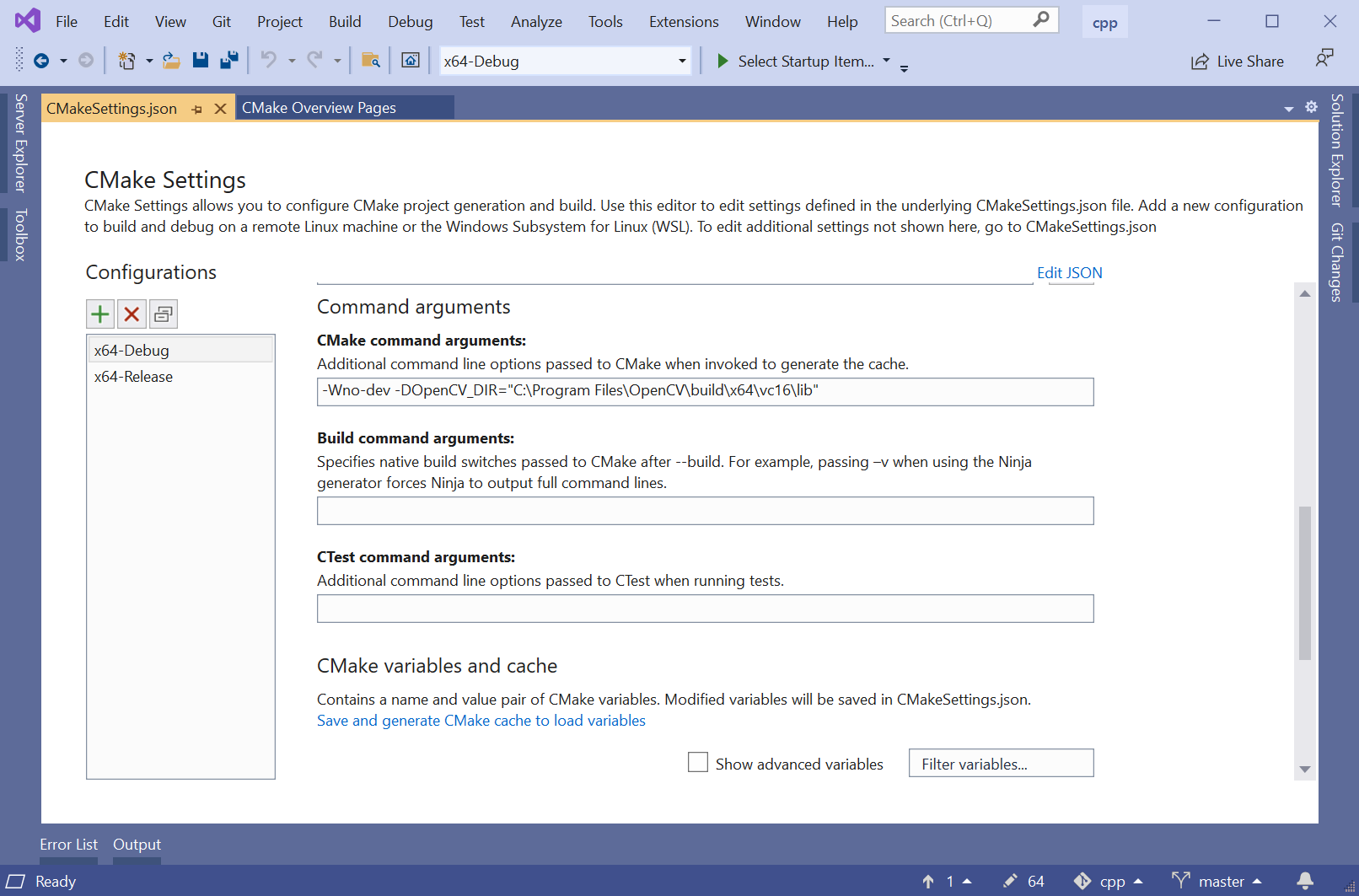
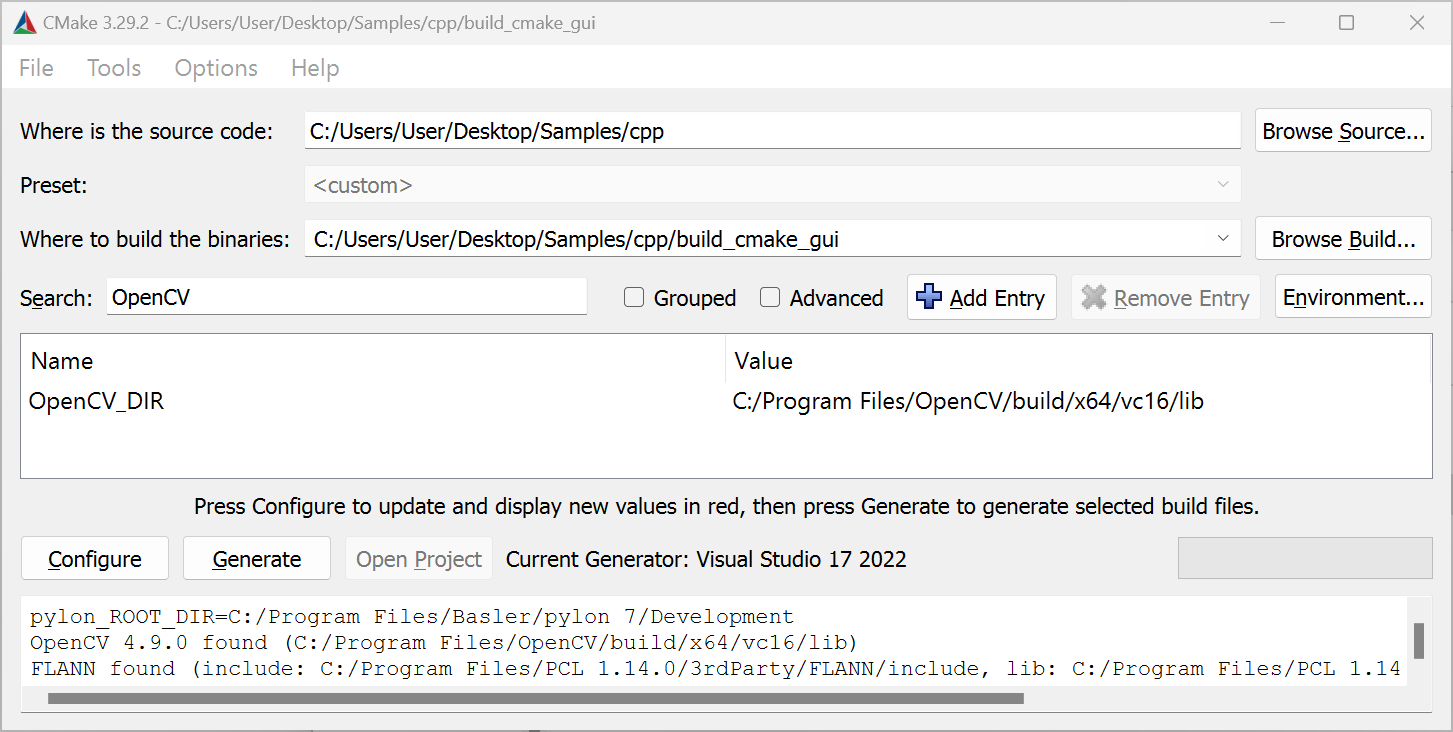
Before you can access the OpenCV_DIR in the CMake GUI, make sure that the Grouped check box is deselected in the CMake GUI.
Adding OpenCV to PATH Environment Variable#
You have to add the OpenCV bin directory to the PATH environment variable.
- Press the Win key.
- Type "environment".
- Click Edit environment variables for your account.
- In the User variables area, select Path.
- Click the Edit button.
- Click New.
- Enter the path of your OpenCV installation, e.g.:
C:\Program Files\OpenCV\build\x64\vc16\bin - Click OK.
If CMake fails to find the OpenCV library, you either have to install the libopencv development package or to build the OpenCV library from sources.
On Ubuntu systems, the libopencv development package can be installed by issuing the following command:
If you build the OpenCV library from sources and install it to a non-standard location, you can use the OpenCV_DIR CMake variable to specify the location where the OpenCVConfig.cmake files are located.
Example:
If CMake fails to find the OpenCV library, you either have to install the OpenCV development package or to build the OpenCV library from sources.
If you build the OpenCV library from sources and install it to a non-standard location, you can use the OpenCV_DIR CMake variable to specify the location where the OpenCVConfig.cmake files are located.
Example:
安装 Point Cloud Library#
You can download the PCL All-in-one Installer for Windows here: https://github.com/PointCloudLibrary/pcl/releases
Make sure that you download a version of the PCL that is compatible with the Visual Studio version you are going to use.
If CMake fails to find the PCL, set the PCL_DIR variable to the folder containing the PCLConfig.cmake file.
Examples
- Open the CMakeSettings.json file (CMake -> Change CMake Settings -> "Stereo ace samples").
- Add
-DPCL_DIR=\"C:\\Program Files\\PCL 1.9.1\\cmake\"to thecmakeCommandArgslist:
- Open the CMake Settings dialog (Project -> CMakeSettings for "Stereo ace samples").
- Enter the following string in the CMake command arguments field:
-DPCL_DIR="C:\Program Files\PCL 1.14.0\cmake". - Press Ctrl+S to save the changes.
Before you can access the PCL_DIR in the CMake GUI, make sure that the Grouped check box is deselected in the CMake GUI.
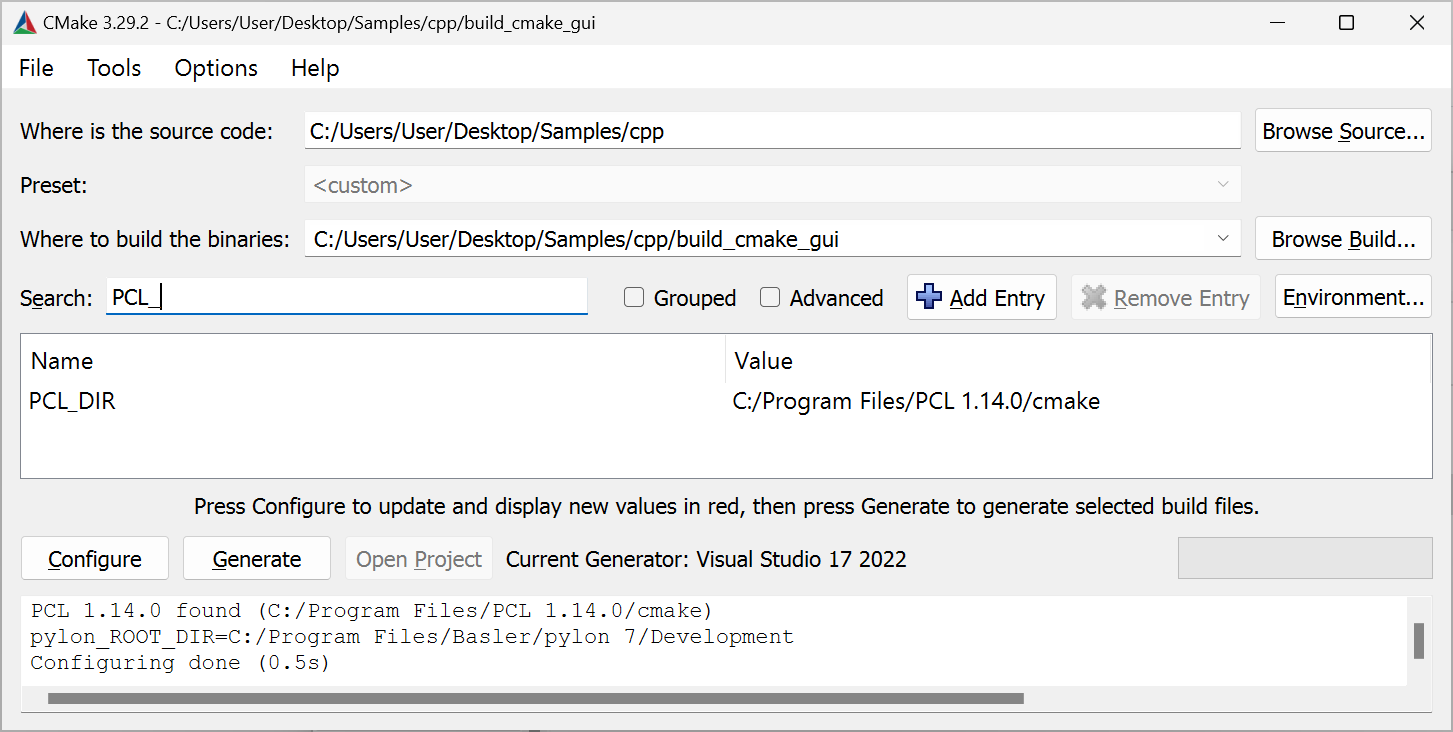
If the PCL is installed using the PCL All-in-one Installer, the installer takes care of adding the PCL bin directory to the PATH environment variable. If you're using a different installation method, you have to add the bin directory to the PATH environment variable yourself.
The PCL All-in-one Installer installs the OpenNI2.dll into the %ProgramFiles%\OpenNI2\Redist folder. The DLL is required at runtime. Either add this folder to your PATH environment variable, or copy the OpenNI2.dll to the folder the PCL binaries are located, e.g., %ProgamFiles%\PCL 1.13.0\bin.
If CMake fails to find the PCL library, you either have to install the libpcl development package or to build the PCL library from sources.
On Ubuntu systems, the libpcl development package can be installed by issuing the following command:
If you build the PCL from sources and install it to a non-standard location, the PCL_DIR CMake variable can be used to specify the location where the PCLConfig.cmake files is located.
Example:
Info
Samples using the Point Cloud Library (PCL) may crash depending on the versions of the PCL and VTK libraries installed on your system. The crash is due to a bug in the VTK libraries that are used by PCL for 3D visualization.
Source: https://github.com/PointCloudLibrary/pcl/issues/5237
Solution: PCL 1.13.1 contains fixes to work around the VTK bug.
Update to PCL 1.13.1 or higher. If required, uninstall the PCL libraries provided by your Linux distribution and build PCL version 1.13.1 or higher from sources (these can be retrieved from https://github.com/PointCloudLibrary/pcl).
If CMake fails to find the PCL library, you either have to install the PCL development package or to build the PCL library from sources.
If you build the PCL from sources and install it to a non-standard location, the PCL_DIR CMake variable can be used to specify the location where the PCLConfig.cmake files is located.
Example:
Info
Samples using the Point Cloud Library (PCL) may crash depending on the versions of the PCL and VTK libraries installed on your system. The crash is due to a bug in the VTK libraries that are used by PCL for 3D visualization.
Source: https://github.com/PointCloudLibrary/pcl/issues/5237
Solution: PCL 1.13.1 contains fixes to work around the VTK bug.
Update to PCL 1.13.1 or higher. If required, uninstall the PCL libraries provided by your Linux distribution and build PCL version 1.13.1 or higher from sources (these can be retrieved from https://github.com/PointCloudLibrary/pcl).
示例列表#
- FirstSample: Stereo ace 相机操作简介以及 3D 数据获取。
- ParametrizeCamera:演示如何访问相机参数。
- DeviceRemovalHandling: 演示如何处理设备断开连接。
- OpenDeviceByIpAddress:演示了如何通过其中一个 IP 地址打开 Stereo ace 相机。
- GrabDepthMap: 演示如何采集和解析深度图。
- SavePointcloud: 演示如何在不使用 OpenCV 的情况下将彩色点云保存到 .ply 文件中。
- SavePointcloudCV: 演示如何使用 OpenCV 将强度图、视差图以及彩色点云保存到文件中。
- ShowPointcloud: 演示如何可视化通过 Stereo ace 相机采集的点云。
- TriggerLowLatency: 演示如何通过在相机上将强度和深度分辨率设置为 High(2x2 Binning)来降低延迟。
- LeftAndRightIntensity:演示了如何从 Stereo ace 相机采集左、右强度图像。
有关更多详细信息,请参阅 C++ 示例目录中的示例代码。
如何构建应用程序#
Using Visual Studio Solutions#
Refer to the Common Settings for Building Applications with pylon section of the pylon C++ Programmer's Guide to learn how to set up a project for building applications using pylon.
使用 CMake#
针对 Stereo ace 的 pylon 补充包包含一个 Findpylon.cmake 模块,用于确定 pylon 以及针对 Stereo ace 的 pylon 补充包的安装位置。该查找模块导出了 pylon::pylon CMake 目标。将此目标作为参数传递给 target_link_libraries,CMake 将负责设置包含路径、库路径等。
一个基础的 CMakeLists.txt CMake 文件可能如下所示:
project (hello)

# Locate the CMake find module for pylon ...
# for Unix systems. All other OS PYLON_ROOT will be empty.
list(APPEND CMAKE_PREFIX_PATH $ENV{PYLON_ROOT})
# for Windows systems. All other OS PYLON_DEV_DIR will be empty.
list(APPEND CMAKE_PREFIX_PATH $ENV{PYLON_DEV_DIR})

find_package(pylon 12.0 REQUIRED)

add_executable(hello helloworld.cpp)
target_link_libraries(hello pylon::pylon)
project (hello)

# Locate the CMake find module for pylon ...
# for Unix system. All other OS PYLON_ROOT will be empty
list(APPEND CMAKE_PREFIX_PATH $ENV{PYLON_ROOT})
# for Windows system. All other OS PYLON_DEV_DIR will be empty
list(APPEND CMAKE_PREFIX_PATH $ENV{PYLON_DEV_DIR})

find_package(pylon 12.0 REQUIRED)

add_executable(hello helloworld.cpp)
target_link_libraries(hello pylon::pylon)
project (hello)

# Locate the CMake find module for pylon ...
# for Unix system. All other OS PYLON_ROOT will be empty
list(APPEND CMAKE_PREFIX_PATH $ENV{PYLON_ROOT})
# for Windows system. All other OS PYLON_DEV_DIR will be empty
list(APPEND CMAKE_PREFIX_PATH $ENV{PYLON_DEV_DIR})

find_package(pylon 12.0 REQUIRED)

add_executable(hello helloworld.cpp)
target_link_libraries(hello pylon::pylon)
适用于 Stereo ace 的 Instant Camera 类#
pylon 提供了不同类型的类来访问相机设备。除了底层 IPylon 设备外,还有所谓的 即时相机 类,它们为相机提供了方便的高级 API。
即: Pylon::CInstantCamera 类,可提供对所有 Basler 相机的通用访问。
对于 Stereo ace 相机,针对 Stereo ace 的 pylon 补充包包含 Pylon::CStereoAceInstantCamera 类。Basler 建议针对 Basler Stereo ace 相机使用此类,因为它提供了便捷的参数访问以及 Stereo ace 专属功能。
如果您使用 CBaslerUniversalInstantCamera 类而不是 CStereoAceInstantCamera 类,你依然可以设置和获取 Stereo ace 相机提供的所有相机参数。如果没有提供访问器对象的 CBaslerUniversalInstantCamera 类提供的访问器对象,请使用所谓的 通用 Property 访问 用于通过名称访问 Property,详见 Generic Parameter Access pylon C++ 程序员指南部分。
示例:
using namespace Pylon;
GenApi::INodeMap& nodemap = camera.GetNodeMap();
CIntegerParameter depthSeg(nodemap, "BslDepthSeg" );
std::cout << "Segmentation: " << depthSeg.GetValue() << std::endl;
打开和访问 Stereo ace 相机#
创建并打开 Stereo ace 相机对象分为三个步骤:
- 为要访问的相机创建一个相机对象。
通常,您应该创建一个Pylon::CStereoAceInstantCamera类的实例。 - 如果需要,注册一个 Stereo ace 专属的配置事件处理器(有关详细信息,请参阅 DeviceRemovalHandling.cpp 示例)。
- 调用
Open()方法以建立与相机设备的连接。
以下示例演示了这些步骤:
#include <pylon/PylonIncludes.h>
#include <pylon/StereoAceInstantCamera.h>
using namespace Pylon;

// ...

// Before using any pylon methods, the pylon runtime must be initialized.
PylonInitialize();

try {
    // 1: Create a camera object for the first available Stereo ace camera.
    CUniversalInstantInterface instantInterface(
        CInterfaceInfo().SetDeviceClass(Pylon::BaslerGenTlStaDeviceClass));
    CStereoAceInstantCamera camera(instantInterface.CreateFirstDevice());

    // 2. Register a default configuration if available (see samples).
    // camera.RegisterConfiguration(...);

    // 3. Open the camera, i.e., establish a connection to the camera device.
    camera.Open();

    // Use the camera.
    std::cout << "Connected to camera "
        << camera.GetDeviceInfo().GetFriendlyName() << std::endl;
    // ...

    // Close the connection.
    camera.Close();
} catch (const GenICam::GenericException& e) {
    std::cerr << "Exception occurred: " << std::endl
        << e.GetDescription() << std::endl;
}

// Releases all pylon resources.
PylonTerminate();
如果发生错误,将抛出继承自 GenICam::GenericException 的异常。
典型错误情况:
- 未找到 Stereo ace 相机:
CreateFirstDevice()函数会抛出异常。 - 无法打开相机,例如因为该相机已被其他应用程序打开:
Open()方法会抛出异常。
以下小节提供了关于如何创建和打开相机对象的更详细信息。
为第一个可用的 Stereo ace 相机创建一个相机对象#
使用 Pylon::CTlFactory::CreateFirstDevice() 方法来为第一个可用的 Stereo ace 相机创建相机对象。始终为 Stereo ace 相机指定 pylon 设备类标识符以防止 CreateFirstDevice() 为不同类型的相机创建相机对象:
CUniversalInstantInterface instantInterface(
    CInterfaceInfo().SetDeviceClass(Pylon::BaslerGenTlStaDeviceClass));
CStereoAceInstantCamera camera(instantInterface.CreateFirstDevice());
如果未找到 Stereo ace 相机,请检查相机和网卡的 IP 配置设置。有关设置网络的更多信息,请参阅 Basler 产品文档中的 网络配置 主题。
为特定的 Stereo ace 相机创建一个相机对象#
如果要打开特定的 Stereo ace 相机,除了设备类之外,还可以指定其他属性。
要通过序列号打开特定的 Stereo ace 相机,请使用以下代码行:
CUniversalInstantInterface instantInterface(
    CInterfaceInfo().SetDeviceClass(Pylon::BaslerGenTlStaDeviceClass));
CStereoAceInstantCamera camera(instantInterface.CreateFirstDevice(
    CDeviceInfo().SetSerialNumber("40410842")));
要通过用户自定义名称打开 Stereo ace 相机,请使用以下代码行:
CUniversalInstantInterface instantInterface(
    CInterfaceInfo().SetDeviceClass(Pylon::BaslerGenTlStaDeviceClass));
CStereoAceInstantCamera camera(instantInterface.CreateFirstDevice(
    CDeviceInfo().SetUserDefinedName("MyCamera")));
用户自定义名称
您可以使用以下参数为相机指定用户自定义名称: DeviceUserID 参数。你可以在 pylon 3D Viewer 或 pylon API 中执行此操作:
通过 IP 地址创建设备
目前,您无法使用 CreateFirstDevice() 函数指定相机 IP 地址。原因在于目前 Pylon::CDeviceInfo() 类不包含任何有关相机 IP 地址的信息。
即: OpenDeviceByIpAddress 此示例演示了如何通过其中一个 IP 地址打开 Stereo ace 相机。
如果未找到所需的 Stereo ace 相机,请检查您使用的属性值是否正确,并检查相机和网络适配器的 IP 配置设置。有关设置网络的更多信息,请参阅 Basler 产品文档中的网络配置主题。
枚举 Stereo ace 相机#
以下代码片段演示了如何获取所有已连接的 Stereo ace 相机的列表。对于列表中的每个元素,都会打开相机并打印一些相机参数值。
#include <pylon/PylonIncludes.h>
#include <pylon/StereoAceInstantCamera.h>
#include <ostream>
using namespace Pylon;

// ....

// Before using any pylon methods, the pylon runtime must be initialized.
PylonInitialize();

// ....

// Enumerate all Stereo ace cameras.
CTlFactory& TlFactory = CTlFactory::GetInstance();
DeviceInfoList_t lstDevices;
DeviceInfoList_t filter;
filter.push_back(CDeviceInfo().SetDeviceClass(BaslerGenTlStaDeviceClass));
TlFactory.EnumerateDevices(lstDevices, filter);
if (!lstDevices.empty()) {
    DeviceInfoList_t::const_iterator it;
    for (it = lstDevices.begin(); it != lstDevices.end(); ++it) {
        std::cout << it->GetFullName();

        // Open camera, i.e., establish a connection to the camera device.
        CStereoAceInstantCamera camera(CTlFactory::GetInstance().CreateDevice(*it));
        // Optionally register configuration(s) here.
        camera.Open();

        // Print out some information.
        std::cout << "Connected to camera "
            << camera.GetDeviceInfo().GetFriendlyName() << std::endl;
        std::cout << "IP Address: "
            << camera.GevCurrentIPAddress.GetValue() << std::endl;
        std::cout << "User-defined name: "
            << camera.DeviceUserID.GetValue() << std::endl;
        std::cout << "Serial Number: "
            << camera.DeviceSerialNumber.GetValue() << std::endl;
}  // The connection will be closed automatically when leaving the scope here.
else {
    std::cerr << "No devices found!" << std::endl;
}
注册相机配置处理程序#
pylon Instant Camera 类允许您注册配置事件处理程序对象,这些对象可用于在某些事件发生时应用相机设置,例如当调用 Open() 方法时。
以下示例演示了如何注册一个应用附加设置的配置事件处理程序:
class MyConfigurationHandler : public StereoAceConfigurationEventHandler
{
public:
    // Sets exposure time to minimum possible value.
    void OnOpened(CStereoAceInstantCamera& camera) override
    {
        camera.ExposureTime.SetToMinimum();
    }
};

// ....

// Then, register configuration event handlers.
camera.RegisterConfiguration(
      new MyConfigurationHandler,
      RegistrationMode_Append, Cleanup_Delete);

// ....

camera.Open(); // Configurations will be applied.
有关 pylon 相机事件处理程序类的更多信息,请参阅 pylon C++ 程序员指南的即时相机事件处理程序基础知识一节。
如果您不想通过提供配置事件处理程序来应用所需的设置,则可以在调用 CStereoAceInstantCamera::Open() 方法来建立与相机的连接。
有关如何设置和获取相机参数值的信息,请参阅参数化相机一节。
连接到相机#
创建相机对象并注册配置事件处理程序后,通过调用 CStereoAceInstantCamera::Open() 方法来建立与相机的连接。
连接将保持活动状态,直到调用 CStereoAceInstantCamera::Close() 方法被调用。析构函数 CStereoAceInstantCamera 会自动调用 Close() (如果尚未显式调用)。
如果相机未定期收到来自相机的心跳请求,则相机将关闭连接。丢失心跳请求通常是因为应用程序崩溃或被调试器中断。
相机参数化#
有关熟悉如何使用 pylon API 访问相机参数的信息,请参阅 pylon C++ 程序员指南的访问参数一节。
pylon C++ 示例 Parametrize_NativeParameterAccess 和 Parametrize_GenericParameterAccess 演示了使用 pylon 访问相机参数的典型方法。
以下代码示例演示了如何使用 CStereoAceInstantCamera 类的实例。
// Include files to use the pylon API
#include <pylon/PylonIncludes.h>
#include <pylon/StereoAceInstantCamera.h>

// Namespaces for using the pylon API and the Stereo ace camera parameters
using namespace Pylon;
using namespace StereoAceCameraParams_Params;


// Set the exposure time of the camera.
camera.ExposureTime.SetValue(5000); // us

// Set the gain.
camera.Gain.SetValue(0.0);

// Set the illumination mode (e.g., AlwaysActive, AlternateActive, Off).
camera.BslIlluminationMode.SetValue(BslIlluminationMode_AlwaysActive);

// Set the illumination strength (0.0 ... 1.0).
camera.BslIlluminationStrength.SetValue(1.0);

// Set the minimum and maximum depth for the working area.
camera.BslDepthMinDepth.SetValue(200); // mm
camera.BslDepthMaxDepth.SetValue(2000); // mm

// Set the output resolutions.
CEnumParameter(camera.GetNodeMap(), "BslDepthResolution").SetValue("High");
CEnumParameter(camera.GetNodeMap(), "BslIntensityResolution").SetValue("Full");

// The producer derives the internal binning and scaling settings automatically.

// Print out current parameter values.
std::cout << "Exposure Time            : "
    << camera.ExposureTime.GetValue() << std::endl;
std::cout << "Gain                     : "
    << camera.Gain.GetValue() << std::endl;
std::cout << "Illumination Mode        : "
    << camera.BslIlluminationMode.GetValue() << std::endl;
std::cout << "Illumination Strength    : "
    << camera.BslIlluminationStrength.GetValue() << std::endl;
std::cout << "Min Depth                : "
    << camera.BslDepthMinDepth.GetValue() << std::endl;
std::cout << "Max Depth                : "
    << camera.BslDepthMaxDepth.GetValue() << std::endl;
std::cout << "Depth Resolution         : "
    << CEnumParameter(camera.GetNodeMap(), "BslDepthResolution").ToString() << std::endl;
std::cout << "Intensity Resolution     : "
    << CEnumParameter(camera.GetNodeMap(), "BslIntensityResolution").ToString() << std::endl;
pylon 3D Viewer 提供了一个 Documentation 窗格。当您在 Features 窗格中选择相机参数时,Documentation 窗格将显示有关所选参数的信息,以及演示如何获取和设置该相机参数值的 C++ 和 C# 代码片段。
采集数据#
请参考 pylon C++ Programmer's Guide 中的 Grabbing Images 一节,熟悉如何使用 pylon API 获取数据。
pylon 将抓取的图像表示为称为 GrabResults 的数据结构。由 Stereo ace 相机采集的 GrabResults 包含多个组件。默认情况下,每个 GrabResult 存储一幅强度图像、一张视差图以及附加信息。
// Enable disparity maps by enabling the Disparity component and setting the
// appropriate pixel format.
camera.ComponentSelector.SetValue(ComponentSelector_Disparity);
camera.ComponentEnable.SetValue(true);
有关更多详细信息,请参阅 Basler 产品文档的 Component Selector 和 Pixel Format 主题。
抓取循环#
pylon 支持用于设置抓取循环的不同方法,并提供了用于处理 Memory 缓冲区的不同策略。
有关更多详细信息,请参考 pylon C++ Programmer's Guide 中的 Grabbing Images 一节。
以下代码片段演示了使用 CStereoAceInstantCamera 类的典型抓取循环:
#include <pylon/PylonIncludes.h>
#include <pylon/StereoAceInstantCamera.h>

using namespace Pylon;
using namespace StereoAceCameraParams_Params;


PylonInitialize();

CUniversalInstantInterface instantInterface(
    CInterfaceInfo().SetDeviceClass(Pylon::BaslerGenTlStaDeviceClass));
CStereoAceInstantCamera camera(instantInterface.CreateFirstDevice());
camera.Open();

size_t nBuffersGrabbed = 0;

// This smart pointer will receive the grab result data.
CGrabResultPtr ptrGrabResult;

camera.StartGrabbing();

while (camera.IsGrabbing() && nBuffersGrabbed < 10) {
    // Wait for an image and then retrieve it. A timeout of 1000 ms is used.
    camera.RetrieveResult(1000, ptrGrabResult, TimeoutHandling_ThrowException);

    // Data grabbed successfully?
    if (ptrGrabResult->GrabSucceeded()) {
        nBuffersGrabbed++;
        // Access the data.
        // ...existing code...
    } else {
        // Error handling
        std::cerr << "Grab error occurred: "
            << ptrGrabResult->GetErrorDescription() << std::endl;
    }
}
// Clean-up
camera.StopGrabbing();
camera.Close();
访问组件#
要访问 GrabResult 的单个图像组件,请使用 Pylon::CGrabResultData::GetFirstImageDataComponent() 方法并指定所需的组件类型。该方法返回一个 Pylon::CPylonDataComponent ,其中包含图像数据(例如深度值)以及元数据。
设置 throwIfNotFound 参数传递给 false ,以便在缺少组件时返回无效组件而不是引发异常。在访问其数据之前,请始终使用 CPylonDataComponent::IsValid() 方法检查是否找到了所请求的组件。
有关 pylon 如何提供对包含多个组件的 GrabResults 的访问权限的更多信息,请参阅 pylon C++ 程序员指南“高级主题”章节中的 多组件抓取结果一节。
示例:
if (ptrGrabResult->GrabSucceeded()) {
    const auto intensityComponent =
        ptrGrabResult->GetFirstImageDataComponent(
            EComponentType::ComponentType_Intensity, 0, false);
    if (!intensityComponent.IsValid()) {
        throw std::runtime_error(
            "Buffer doesn't contain an intensity component.");
    }

    const auto disparityComponent =
        ptrGrabResult->GetFirstImageDataComponent(
            EComponentType::ComponentType_Disparity, 0, false);
    if (!disparityComponent.IsValid()) {
        throw std::runtime_error(
            "Buffer doesn't contain a disparity component.");
    }

} else {
    std::cerr << "Grab error: " << ptrGrabResult->GetErrorCode() << " "
              << ptrGrabResult->GetErrorDescription() << std::endl;
}